I have been vaguely aware that shadow copies are a means of recovering files without going to back up, but when I had a user request a file that she had deleted today, I decided to look into it. For Windows 2003 shares, you can recover deleted or saved/changed files BUT shadow copies has to be enabled first. In this particular case, shadow copies was not enabled. But here is how you do it:
--------
Shadow Copy is only available on Server 2003 machines and naturally you need NTFS (not FAT32). Configuration is easy, just click on the root of the any drive, Select a Volume, now press the Settings button. A crucial point is that Shadow Copy only works on network shares, and not on plain un-shared folders. So in passing, note that the number of shares for each volume. 'Best Practice' suggests that you place the 'Shadow' on a separate disk or at least on a separate partition. Personally, I would dedicate a disk to this service thereby improving performance. To change the drive, select the 'Details Button'.
Microsoft provide a schedule of two shadow copies a day, at 7:00 am and 12:00. You may wish to adjust these timings. When you select a schedule bear in mind that when you reach 64 shadows, the system starts over-writing. So make a calculation of how far back you would like to keep copies. My point is that if you go mad and schedule every hour, then you will start over writing within 3 days. Is that desirable? Would you want copies to be over-written so soon? I think not both on the grounds of load on the server and on how long you would want to retain previous versions.
--------
And then once it is enabled, here is how a user could retrieve files:
--------
To Recover a Deleted File
- Drill down to the folder the file was deleted from.
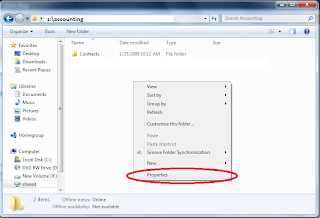
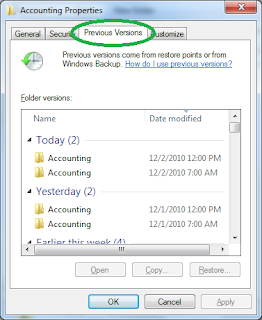
- Click in the list and then right-click the mouse to select Properties from the bottom of the menu. Select the Previous Versions tab from the Properties dialog box.
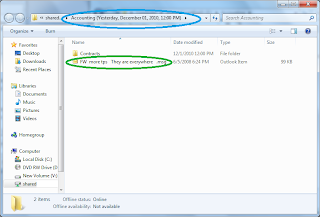
- Select the version of folder that contains the file before it was deleted. Then click View. This will open the folder showing you the last saved version of the file. You can now select the file and drag and drop or cut and paste it from the folder to the target destination.
It is easier to recover a corrupt or overwritten file because you have something to select in the folder:
- Right-click the bad file and click Properties.
- Select Previous Versions as described above. To view the safe version, click View. To copy the old version to another location, simply click Copy and to replace the current version with the older version, simply click Restore.