Showing posts with label Dell. Show all posts

Thursday, December 10, 2015

Installing Server OS on a Dell with a DRAC card and without a DVD Drive

Simple process for installing a server OS on a Dell server that came with a DRAC card (which I recommend in all cases).  

Download the ISO for the installation DVD (typically from the MS VLSC) such as the Windows 2012 R2 DVD ISO.

I recommend that you boot up the server and go through RAID configuration using Control - R to set up your RAID array before continuing.  RAID is not configurable inside Windows setup.

Open the DRAC web interface (default location is 192.168.0.120 with a username/password of root/calvin).  

Open a virtual console.

In the virtual console.

Click Virtual Media -> Connect Virtual Media


Click Virtual Media -> Map CD/DVD


Choose the ISO file from your local machine (the ISO file should be located on your phsyical machine - not at all on the server).  I highly recommend you do this over a wired connection.  It'll take 20+ minutes over a wired connection to transfer the contents of a 6 GB ISO file and more than an hour over wireless.


In Next Boot, choose virtual CD/DVD/ISO.


Monday, August 3, 2015

Setup of Dell branded Aruba wireless access points

These are the basic steps for setting up Dell branded Ariba wireless access points:


  1. connect to WLAN named "instant"
  2. open non HTTPS page
  3. will be redirected to https://instant.dell-pcw.com:4343/#home
  4. log in as admin/admin
  5. in the top middle, click on edit next to the MAC address and give the WAP a new name
  6. in the top left under networks, click on New to create a new SSID
  7. Click on system in the upper right hand corner
    1. - change name to more descriptive name
    2. - Change time zone
    3. - Change preferred band to 5 Ghz
  8. Clicki on the admin tab and change the admin password
  9. Click on RF in the upper right hand corner
  10. - in band steering, change value to Force 5 Ghz
  11. in upper left hand corner under networks, delete the SSID of instant


Wednesday, July 1, 2015

Invalid partition table on a new Windows 7 install (UEFI vs legacy boot)

I rarely ever edit anything having to do with UEFI, but I found a situation where I was getting "invalid partition table" on a new Windows 7 installation from DVD.

The problem was that I was booting to the DVD from UEFI and then botting Windows from legacy BIOS (or so I think).  When pressing F12 on my Dell Latitude E7240, I got these options:


I was booting to the DVD ROM using "UEFI: HL-DT-ST DVD+/-RW GU60N"

However, presumably when the machine rebooted, it was trying to boot from the legacy hard drive.  If I booted to the UEFI hard drive when botting from the UEFI DVD drive, it would work.  But if booting to the Internal HDD from the legacy boot, I get "invalid partition table."

That's my theory as to why I was getting "invalid partition table"

Based on a sample size of one, this holds true.

Monday, February 2, 2015

Virtual Network Queuing causes poor performance on Dell servers

In troubleshooting some poor network card behavior on my Dell PowerEdge T420 running Windows Server 2012 with three virtual machines on it, I came across these articles that describe problems with virtual network queues enabled on Broadcom NICs.

https://support.microsoft.com/kb/2902166/EN-US?wa=wsignin1.0

http://www.experts-exchange.com/OS/Microsoft_Operating_Systems/Server/Windows_Server_2008/Q_27985670.html

I upgraded to the latest drivers and disabled the virtual machine queues.  My sample size was small and problems intermittent, so it's hard to say if I resolved the issues, but it's worth noting.

Wednesday, April 16, 2014

fixing hibernation issues on Windows 7

I've got several Dell laptops (Latitude E6410, E6230, E6220) with trouble resuming from hibernation.  What I'm seeing most often is the laptop will begin to resume and then sit at the Welcome screen and never go any farther.  I'm going to make this my standard protocol for troubleshooting hibernation issues:

http://www.makeuseof.com/tag/when-power-saving-fails-fixing-windows-7-hibernation-issues/

The short version:

  • update all hardware drivers
  • disable and re-enable hibernation to delete and recreate the hiberfile.sys
    (run powercfg.exe /hibernate off and powercfg.exe /hibernate on)
  • in device manager, turn off all devices that are capable of waking the computer (particularly NICs)
  • turn off the auto-hide task bar
  • in power options -> advanced settings for the active power profile, disable hybrid sleep


Thursday, July 11, 2013

removing Dell battery message "Your battery is able to charge normally. However it is reaching the end of its usable life"

By design, Dell laptops will warn you as their battery life starts to decline.  When you log in, Windows will display this message "Your battery is able to charge normally. However it is reaching the end of its usable life"

My comment on this message is typically this:

---
All rechargeable batteries have a limited life span. It varies from battery to battery, but a battery typically loses 25% of its life per year (so a 2 year old battery lasts half as long as it did when it was new).

While it’s typical for a battery to last less long, it’s not so much of a problem unless the battery life no longer meets your needs. If you say the word, I’ll begin the process of requesting a new battery on your behalf.
---

I found this elegant way to remove the warning which seems to work on all E series Dell Latitude laptops.

http://en.community.dell.com/support-forums/laptop/f/3518/p/19317355/20118960.aspx#20118960

In short, download and install the Dell Feature Enhancement pack:
64 bit version:
http://www.dell.com/support/drivers/us/en/19/driverdetails?driverid=MHVWP

32 bit version:
http://www.dell.com/support/drivers/bm/en/19/driverdetails?driverid=DV6XM

The follow these steps:

1. Copy all *.admx files in C:\Program Files\Dell\Feature Enhancement Pack\policydefinitions to C:\Windows\PolicyDefinitions

2. Copy all *.adml files in C:\Program Files\Dell\Feature Enhancement Pack\policydefinitions\en_US to C:\Windows\PolicyDefinitions\en-US

3. Run Group Policy Editor - Click Start button and in the Search box type gpedit.msc and click the result

4. Browse to Computer Configuration -> Administrative Templates -> System -> Dell -> Feature Enhancement Pack -> System Events and double click Battery in the right pane

5. Select Enable radio button and put a check mark for "Battery health degraded"

6. You can get rid of any other massages there as well

7. Click OK

Wednesday, April 27, 2011

intermittent temporary freezes or pauses on Dell Latitude E4200

I've found some issues with intermittent temporary freezes/pauses on Dell Latitude E4200 laptops. But the hard part is that I've found no rhyme, reason, or consistency for the issue. It's certainly partly hardware related - but how? Here's what I know:

Windows will temporarily freeze every 5 to 10 minutes for 2 to 4 seconds. Keyboard and mouse will be unresponsive and the whole OS seems unresponsive during these short periods.

This problem ONLY happens when docked.

Twice, I have been able to narrow this problem down to hardware. In one case, a locally attached (via USB) Laserjet 2300DN and in another case a Logitech webcam. Once these objects were disconnected, the intermittent freezing stopped.

But I can't narrow it down to specific hardware all the time. For one user, he had nothing but the basics plugged in (USB keyboard, USB mouse, VGA monitor, ethernet). I got a different USB keyboard, USB mouse, and a different monitor (DVI this time). I also updated his BIOS and all other drivers. No effect. The intermittent freezing continued. I've seen this issue before and after the installation of Windows 7 SP 1 and with Symantec Endpoint Protection (separate rant on SEP forthcoming in a future blog post) and with MS Security Essentials.

I'm about to troubleshoot this again on another laptop. Interestingly, I've found this issue on 5 different Latitude E4200 laptops out of about 20 I have in place at various clients. So it's clearly not a universal issue. It's hard to troubleshoot because I have laptops with the exact same configuration not giving the same problem and the problem isn't easy to reproduce. If you have any experience with this issue, please feel free to leave a comment.

EDIT - I have resolved this on two laptops just by updating drivers. From the Dell web site, I updated the BIOS, video driver, mouse driver, and WLAN card driver. I'm not sure which one actually did it, but all the drivers should be up to date anyway.

Sunday, November 14, 2010

adding Sigmatel drivers on older Dells

I have a Dell Vostro 1400 that has a Sigmatel audio device. I had to reformat it with Windows 7, but the Windows HD driver that Windows installed didn't work quite right. For some reason, the speakers wouldn't work - only headphones when you plugged them in.

I ended up installing the Vista driver as recommended by this article (which also includes a link to the driver since Dell's link for that driver on their site is not working as of 11/14/10).

Wednesday, June 9, 2010

removing Dell background on preconfigured servers

Dell prebuilt servers come with a wallpaper background that appears whenever you remote desktop to that box - which can be very slow over a low bandwidth connection. Found this registry change that will get rid of that default wallpaper:

Open Regedit and modify the following key
HKEY_USERS\.DEFAULT\Control Panel\Desktop\Wallpaper
Change value from \windows\system32\DELLWALL.BMP to blank, as in nothing, not the word ‘blank’.

Monday, June 1, 2009

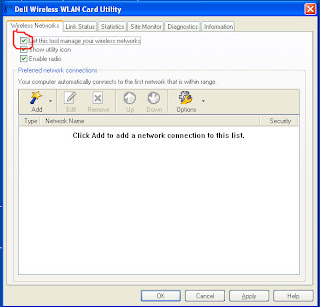
How to use Windows to manage Wi-Fi instead of Dell utility


If you have a Dell wireless adapter, it may be that the Dell wireless utility is controlling which wireless networks.  I always prefer the Windows utility.  Here is how you change that.

Double click on the icon below:


Then uncheck the box next to "let this tool manage your wireless networks."


Friday, January 23, 2009

Friday, October 26, 2007

Dell Latitudes and disabled NICs

One thing I've had trouble with off and on is that Dell laptops with Broadcom network cards disable the NIC when you unplug the power cord and a network cord is not in. This can create problems when you have users who work on a wired connection at their office and then take their laptop home and work wirelessly on battery and then bring their laptops back in. When you clod boot a computer, the NIC comes back on, but if the laptop was asleep, in my experience it does not.

Personally, I've always preferred to just disable that power saving feature. The Broadcom applet in the Control Panel doesn't do it, so I have found the best way to do it is to do this:

Unplug the network cable
Unplug the power cable
For about 3 seconds a Broadcom window will come up that will say "your internal network card has been deactivated. Click here to change preferences"
And then you tell it to "always activate on battery"

You can do this in the dock or not in the dock.