By default, Office365 mailboxes retain deleted items for 30 days. This is a bit short, I think. I typically like to make this limit 90 days to one year. Here are the powershell commands needed to run to make that happen (365 days in this example):
PS C:\scripts> enable-organizationcustomization
PS C:\scripts> Set-RetentionPolicyTag "Deleted Items" -AgeLimitForRetention 365
This is based on getting into PowerShell, based on my directions here:
http://t-solve.blogspot.com/2013/11/how-i-configure-script-to-get-into.html
Monday, March 24, 2014

Sunday, March 23, 2014
setting up Blackberry services on Office365
These are the steps to enable Blackberry services on Office365 (running Exchange 2013).
From the admin console, go to service settings -> mobile
Click on Enable service
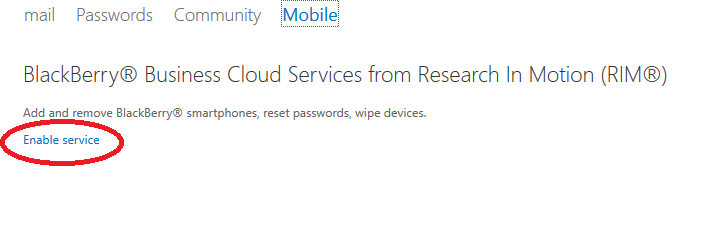
From there, you can manage the service. Of note, as of 3/23/14, I'd get an error when I tried to manage the Blackberry service from IE 11, but I was able to use Chrome. Pretty weird.

From the admin console, go to service settings -> mobile

Click on Enable service
From there, you can manage the service. Of note, as of 3/23/14, I'd get an error when I tried to manage the Blackberry service from IE 11, but I was able to use Chrome. Pretty weird.
Monday, March 3, 2014
Snapshots taking up tons of space on VM host machines
I found myself in a situation where I had a 1 TB drive on a VM host (running Windows 2008 R2) with four virtual machines on it that was completely out of space. I found that there were tons of AVHD files taking up a lot of room. Per what I read, these are snapshot files, even though I deleted the snap shots from the Hyper-V Manager (and cleared up a dozen GB or so), the snapshots were not truly gone.
This page talks a little bit about the process:
http://blogs.msdn.com/b/charles_sterling/archive/2008/08/06/what-are-all-these-avhd-files-hyper-v.aspx?Redirected=true
But in the end, I got the space back by just turning off the virtual machines. When I did so, there was a merge process that went on with the snapshots. In a turned off machine, this just happens automatically. In the end, I turned off the machines and left them off until the "cancel merge in progress" went away. For my largest VM (approx 400 GB of storage), this took about 4 hours.
This is what the cancel merge in progress looks like:

This page talks a little bit about the process:
http://blogs.msdn.com/b/charles_sterling/archive/2008/08/06/what-are-all-these-avhd-files-hyper-v.aspx?Redirected=true
But in the end, I got the space back by just turning off the virtual machines. When I did so, there was a merge process that went on with the snapshots. In a turned off machine, this just happens automatically. In the end, I turned off the machines and left them off until the "cancel merge in progress" went away. For my largest VM (approx 400 GB of storage), this took about 4 hours.
This is what the cancel merge in progress looks like:
Tuesday, January 21, 2014
Using CUPS to configure Mac printers to default to black and white printing
Below is the video that a copier vendor sent me on setting up CUPS to configure print drivers to print in black and white on Macs. I've had success setting this up on Canon and Xerox printers, but I've found that the option isn't present on Konica Minolta copiers.
Also located here:
http://www.t-solve.com/clients/instructions/CUPS-setup/Set-Print-Defaults-Using-CUPS.mov
Also located here:
http://www.t-solve.com/clients/instructions/CUPS-setup/Set-Print-Defaults-Using-CUPS.mov
Wednesday, January 8, 2014
information to gather when taking over support for another client
This is an ongoing list of things that one should get when taking over IT support of a client (if you can get it):
admin credentials for a domain admin account
login credentials for the router/firewall
Tech Soup login info (if applicable)
Volume licensing information from Microsoft, Symantec, or other vendors as applicable
Account number for ISP
Account number for phone carrier (if supporting phones)
Contact info for phone vendor (if supporting phones)
login credentials for registrar
login credentials for any and all DNS nameservers
admin credentials for a domain admin account
login credentials for the router/firewall
Tech Soup login info (if applicable)
Volume licensing information from Microsoft, Symantec, or other vendors as applicable
Account number for ISP
Account number for phone carrier (if supporting phones)
Contact info for phone vendor (if supporting phones)
login credentials for registrar
login credentials for any and all DNS nameservers
Tuesday, December 10, 2013
quantity of data stored on laptops/desktops
Below is the headline to a promotional email I got promoting a whitepaper. The notable thing to me is the data on the amount of data stored on endpoints (i.e., desktops and laptops). At present, I'm putting laptops in place instead of desktops at a rate of about 20 to 1. Laptops have the ability to travel which makes them harder to back up, and if 28% of data is truly stored only on these endpoints, then an online backup system makes more and more sense. My favorite (and has been for years) is Backblaze at $50 per computer per year (not a paid endorsement). I've looked for better options and have yet to find any.


Wednesday, November 20, 2013
how I configure a script to get into a Powershell CLI for editing Office365 properties
I was setting up a laptop to use a script to get into a Powershell CLI and wanted to document what I used to get in.
You'll need to download two items to enable PowerShell:
1) Microsoft Online Services Sign-in Assistant
2) Azure AD Module for Windows PowerShell
from here:
https://technet.microsoft.com/library/dn975125.aspx
You may need to install .net 3.5 from turn windows features on/off.
Then I created a folder on the root C called scripts. In there, I created a file called office365.ps1 with these contents:
---
Import-Module MSOnline
$O365Cred = Get-Credential
$O365Session = New-PSSession –ConfigurationName Microsoft.Exchange -ConnectionUri https://ps.outlook.com/powershell -Credential $O365Cred -Authentication Basic -AllowRedirection
Import-PSSession $O365Session
Connect-MsolService –Credential $O365Cred
---
Then I make edits by opening powershell. Navigate to c:\scripts and run office365.ps1. Of note, you might also need to enable remote execution (Set-ExecutionPolicy RemoteSigned) like this:

From there, I use the commands I described in this post:
http://t-solve.blogspot.com/2013/01/office365-shell-commands-for-reference.html
When I need to run a Powershell script, I open powershell, navigate to c:\scripts, and I run office365.ps1 like this:

You'll need to download two items to enable PowerShell:
1) Microsoft Online Services Sign-in Assistant
2) Azure AD Module for Windows PowerShell
from here:
https://technet.microsoft.com/library/dn975125.aspx
You may need to install .net 3.5 from turn windows features on/off.
Then I created a folder on the root C called scripts. In there, I created a file called office365.ps1 with these contents:
---
Import-Module MSOnline
$O365Cred = Get-Credential
$O365Session = New-PSSession –ConfigurationName Microsoft.Exchange -ConnectionUri https://ps.outlook.com/powershell -Credential $O365Cred -Authentication Basic -AllowRedirection
Import-PSSession $O365Session
Connect-MsolService –Credential $O365Cred
---
Then I make edits by opening powershell. Navigate to c:\scripts and run office365.ps1. Of note, you might also need to enable remote execution (Set-ExecutionPolicy RemoteSigned) like this:

From there, I use the commands I described in this post:
http://t-solve.blogspot.com/2013/01/office365-shell-commands-for-reference.html
When I need to run a Powershell script, I open powershell, navigate to c:\scripts, and I run office365.ps1 like this:

Subscribe to:
Posts (Atom)