Showing posts with label BlackBerry. Show all posts

Sunday, March 23, 2014

setting up Blackberry services on Office365

These are the steps to enable Blackberry services on Office365 (running Exchange 2013).

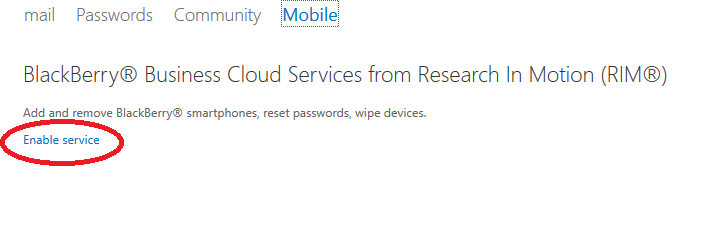
From the admin console, go to service settings -> mobile


Click on Enable service


From there, you can manage the service.  Of note, as of 3/23/14, I'd get an error when I tried to manage the Blackberry service from IE 11, but I was able to use Chrome.  Pretty weird.


Wednesday, December 8, 2010

setting up a Blackberry on Google Apps (with current Enterprise Activation)

This post will guide you on how to set up your Blackberry with your new Google Apps server.

Your phone was originally installed using a different kind of server - Blackberry Enterprise Server - and we have "wipe" your phone to remove those Blackberry Enterprise Server settings.

If you have anything other than email/contacts/calendar that you want to keep – please touch base with your system administrator to help back up your phone (this would typically be things like music or pictures). If the only content on your Blackberry is your company data then we can continue.

Step 1:

First, we wipe the Blackberry.

Click Options > Security Options > General Settings > Click the trackwheel/trackball on the Password field > Select “Wipe Handheld“ Type in blackberry when prompted.

A youtube video showing the wipe process is here:
http://www.youtube.com/watch?v=xRt9eXb0NW8&feature=related

Step 2:

Download the Google mail for Blackberry application.

To download the email app, in the web browser on the BB, go to www.gmail.com

Near the top of the screen, you should see an icon for “get faster gmail” - click on that

Download the gmail application and install it.

It’ll probably put the gmail application in the applications group on your BB. I’d recommend moving the gmail app to your main screen.

Open the gmail app and log in with your email address and your password.

It’ll download all your Google Apps email currently in your inbox.

Step 3:

Download Google Sync for the Blackberry.

In the web browser on your BB, go to http://m.google.com/sync

Download the app and install it. It’ll probably be located in applications after you install it. Sign in with your email address and password and tell it to sync your calendar and contacts.

That should be it.

Please contact your system administrator if you have any questions.

Saturday, August 21, 2010

user not started because of error 8004011d for Blackberries

I had a BES Express box sitting on an Exchange 2010 box, but my users weren't receiving email. The event logs showed "user not started." After stopping and restarting the services in the proper order, my next step in troubleshooting was to run IEMStest.exe from a DOS prompt. Here were my results:

C:\Program Files (x86)\Research In Motion\BlackBerry Enterprise Server\Utility>IEMSTest.exe
BlackBerry Enterprise Server Utility - IEMSTest.exe (IExchangeManageStore), Version 1.0
Copyright (c) Research In Motion, Ltd. 1999. All rights reserved.
Opening Default Message Store Mailbox - BESAdmin

Eric Jones: Opening message store using
/o=First Organization/ou=first administrative group/cn=Recipients/cn=Eric
/o=First Organization/ou=Exchange Administrative Group (FYDIBOHF23SPDLT)
/cn=Configuration/cn=Servers/cn=server2/cn=Microsoft Private MDB
Eric Jones: OpenMsgStore failed (8004011d)
Eric Jones: CDO Server Name: server2
Eric Jones: CDO Mailbox DN: /o=First Organization/ou=first administrative grou
p/cn=Recipients/cn=Eric
Eric Jones: CDO logon successful
Eric Jones: Get default calendar folder successful
Eric Jones: Get calendar folder name successful: 'Calendar'
Eric Jones: CDO test completed successfully
Eric Jones: Active Directory permissions test completed successfully


As per the above output, the mailbox was not opened with error 8004011d. I ended up following these steps to adjust the throttling policy, which fixed the issue. After making the changes, I restarted the BB services and the Exchange services, and then the IEMStest passed and the mailboxes were accessible again.

Friday, August 20, 2010

order to use when stopping and restarting BES services

When stopping and restarting BES services in the course of troubleshooting, I found this KB on the correct order to stop services and the correct order to start the services after they have been stopped. From the KB:

The correct order to start the BlackBerry Enterprise Server services is detailed below:

  1. BlackBerry Router
  2. BlackBerry Dispatcher
  3. BlackBerry Controller
  4. All remaining BlackBerry Enterprise Server services
The following is the order in which to stop the BlackBerry Enterprise Server services:
  1. BlackBerry Controller
  2. BlackBerry Dispatcher
  3. BlackBerry Router
  4. All remaining BlackBerry Enterprise Server services

Wednesday, June 30, 2010

BES Express installation thoughts

RIM released a new version of their free server side enterprise software in early 2010. There are some big benefits of the new version (Blackberry Enterprise Server Express 5.0 over Blackberry Professional Server Express). Three huge advantages to the new version - 1) you can install it on 64 bit systems, 2) you no longer need the BB Enterprise plan on your devices to use Blackberry Enterprise (though you need BB Enterprise plan to do wireless activation - without it, you need to do wired activation through the desktop software), and 3) the server license is free and so are all device licenses.

You can get the software here:
http://na.blackberry.com/eng/services/business/server/express/?iid=BESX_Software_landing

The install wasn't too different from the previous version of the server software, but what's great is that RIM made a great installation guide and one that included a great screen shot walk-through.

Here's the text guide:
http://docs.blackberry.com/en/admin/deliverables/14335/BlackBerry_Enterprise_Server_Express_for_Microsoft_Exchange-Installation_and_Configuration_Guide--984521-0120054149-001-5.0.1-US.pdf


Here's the screen shot walk-throug:
https://www.blackberry.com/blackberrytraining/web/_content/indexExternal.html?cc=3731382d30323036335f42455358496e7374616c6c&cx=3230393930313031&cl=656e&cg=636f6e6669675f6c6f76655f707572706c652e786d6c

I was setting up BES Express on a Windows 2008 R2 machine with Exchange 2010 on it. The truth is that I had some trouble with the instructions. There were several things that the guide told me to do that I couldn't. I had trouble setting send as permissions to besadmin. I had trouble granting log on locally as a permission to besadmin (option was greyed out). I also couldn't get this command to work (I edited it as appopriate for my domain):
Add-ADPermission -InheritedObjectType User -InheritanceType Descendents -ExtendedRights Send-As -User "BESAdmin" -Identity "DC=,DC=,DC="

So in my case, luckily, I had already created another bedadmin account when my domain was a 2003 domain - but overall, minus the issues on this Exchange 2010 install, which I was luckily able to work around, the new version is a welcome change.

Thursday, April 22, 2010

Google Apps upgrade impressions

Today, I took a 7 person company and moved them from a shared Linux/POP server to Google Apps. Once I got the process down, it was super easy.

Presuming that you want to keep Outlook in use or use the gmail webmail as your primary interface (which is what it sounds like Google wants you to do), you start the same way.

Start with the Google Apps Sync for Outlook:
https://tools.google.com/dlpage/gappssync

Just install that, log in, choose a new profile. and then import and choose the old Outlook profile where all the data is. It'll take a minute before it starts importing, but it'll do it.

This is really the best method. I tried to do an import from a PST file, but that failed several times. The google email updater is also an option, but that requires Outlook to be closed, so it's not convenient for a user to work on while the uploading process is happening.

I also had to set up three Blackberries. Setting up Google sync (which does wireless syncing of calendar and contacts only) was super easy. Just go to this site on the BB, log in, and that's it:
http://m.google.com/sync

But what was weird was the Google Mail app for Blackberries. You can get that here on the BB:
http://m.google.com/mail

On the Storm, I was able to get the Google icon to appear. On the 8800 and the 9630, I downloaded and installed the mail app, but there was no Google Mail icon. I installed again. Nothing. So instead, I set up those two BBs with IMAP accounts.

First, I had to enable IMAP. You can't do that on an individual's Google settings. It must be done from an admin's console.

Here's how you enable IMAP company-wide:

Click on Manage this domain
Click on Service settings
On that page, find the check box for "Disable POP and IMAP access for all users in the domain" and UNCHECK that box

Wait 30 minutes and you'll be able to use IMAP to check email for staff on google apps

Friday, February 26, 2010

Blackberry Controller Service stops with error error 5003 (0x138B)

On one of my SBS 2003 servers, I run Blackberry Professional Server Express. All of a sudden, last night at about 7 pm, I got this in my application event log:

EVENT ID 20000
COMPUTERNAME SERVER1
DATE / TIME 2/25/2010 7:05:00 PM
MESSAGE Could not connect to Service Control Manager at \\127.0.0.1: 1722

and then I got this error when trying to start the Blackberry Controller Service - which was stopped:
The BlackBerry Controller service terminated with service-specific error 5003 (0x138B).

Long story short . . .

For some reason, the DNS Server service causes some problem with the Blackberry Controller service. It's easily fixed by stopping the DNS Server service and then starting the Blackberry Controller service. And then you can restart the DNS Server service. It's not a big deal - but it looks like I'm going to have to go through this stupid rigmarole each time I reboot the server from this point forward.

Wednesday, November 4, 2009

registering a blackberry on the network

Had a Verizon Blackberry that needed to be registered on the network. Went to options -> advanced options and the host routing table. Click the menu/blackberry button and hit register.

Monday, October 26, 2009

Blackberry Tour 9630 setup weirdness

I've recently gotten two Blackberry Tours lately and in both, the BB didn't have the web browser or the ability to establish a BIS account (this is found under the setup group in email settings). In each case, I had to do this:

Options-> Advanced Options -> Hosting Routing table -> Register Now

Very stupid, but at least it works.

Friday, September 4, 2009

setting up BIS with OWA

Of course BIS can be set up to use POP or IMAP to retrieve mail from a mail server, but up until today, I had never successfully set up the option to use Outlook Web Access settings. You can set up BIS from either the 'email settings' application on the BB itself or from one of the web portals like:
or

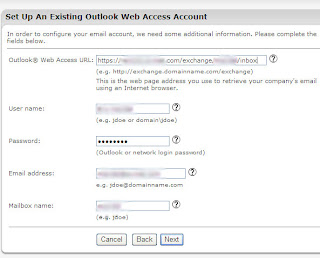
But if you choose work email when presented personal or work account, you can enter your OWA settings there. Here are setting that work for this process:

enter the following info:

https://mail.domainname.com/exchange/MAILBOXNAME
(of note, sometimes, you may need to use https://mail.domainname.com/exchange/MAILBOXNAME/inbox)

INTERNALDOMAINNAME\MAILBOXNAME

**your password**

your email address

MAILBOXNAME

Here's a screen shot of one that worked normally:

Wednesday, March 4, 2009

Blackberry troubleshooting with SQL issues

Today, I dealt with an issue where I ended up rebuilding my entire Blackberry Professional Express server on an SBS 2003 box.  Here is my nightmare and what I did to address it.

First, I had an existing user that got a new Blackberry.  I deleted the user from Blackberry Manager, as I had done many times before.  But this time, I could not add him bacl.  It kept telling me "User 'username' is in delete pending state on server 'servername', please recover the user before adding user to server"

As far as I can tell, there is no option to recover a user in Blackberry Professional, only in Blackberry Enterprise.  So then I read about options to delete the user from the SQL database.  I saw this for MDSE:

And I was advised to do this in SQL Express 2005:
Log on as your besadmin account and select Windows trust authentication.
Open table "dbo.UserConfig" and delete the entry where appear your old BlackBerry user.


But that didn't help either.  But somehow when I was in SQL Express in the appropriate database for the Blackberry, something got corrupted and now none of my Blackberries were working.  

To make a long story short - what I eventually did was redownload and reinstall the Blackberry Professional Express software, create a new SQL instance, and install it there.  The steps needed an SBS box are documented here and here.


Thursday, October 16, 2008

configuring pre-4.0 Blackberries to BES

Yesterday, I was setting up a Blackberry 7290 to use the BES box I had created.  The BB was running version 3.8 of the device software so it couldn't use over the air enterprise activation.  After searching, it was just as simple as reinstalling the the BB desktop software and when prompted during the install - tell it to use a BES/corporate server.  I had already created a user on BES for the user who was on this BB - but I don't know how necessary that was.  It seemed pretty easy upon that install, which was nice.

Monday, September 15, 2008

making a Blackberry behave like a Treo or Windows Mobile device

By default, Blackberries mix in the sent items and contents of subfolders in one giant mailbox on the Blackberry. I hate that behavior. I'd much prefer it to act like a Windows Mobile device where you only see the inbox and its contents. On a Blackberry, you have the added benefit of being able to see sub-folders and sent items through this method. In addition, I hate the default behavior of items deleted on your BB remaining in your inbox. It's much better with wireless sync of the BB and the inbox so that the two always show the same content.

Step 1:
Turn on "delete on mailbox and handheld"
Go to your Messages folder, push the menu button and go to options.
Go to Email reconciliation and make the value for 'delete on' to be "mailbox & handheld"

Step 2:
Turn off showing filed and sent messages
Go to your Messages folder, push the menu button and go to options.
Go to General Options and make the value for 'hide filed messages' to be "yes"
Make the value for 'hide sent messages' to be "yes"

Friday, September 12, 2008

Installing the SQL instance for Blackberry Professional correctly

There is a small trick to getting the SQL to work in Blackbery Professional. It's given me trouble twice, so I decided to document it.

The SQL database window that comes up is missing some data - what it's missing is the \database name. Here is an example of a SQL configuration that worked for me (I used SQL Express 2005 for my db engine).

Wednesday, August 13, 2008

allowing SRP on a BB server on an SBS Premium box

I'm documenting my own confusion here, as I know it'll come up later.

When creating a Blackberry Professional Express server, it needs to have SRP access to the Blackberry servers (port 3101). They have a test for this connectivity here:

c:\Program Files\RIM\BlackBerry Enterprise Server\Utility\BBSRPTEST.EXE

I was having trouble with getting port 3101 to connect to the RIM server, and then I thought I made some firewall changes to make it work - but even after disabling the firewall changes I made, it still worked - so I figure it worked without my assistance. For my own knowledge . . .

I opened up port 3101 outbound to all blackberry.net addresses and I made sure the SBS Internet Access Rule was set for all users and was not set to read only for FTP. I made these changes and then it worked. Then I disabled all these things, and it still worked. I have replicated this issue multiple times. Very strange.

This is what the test gives you when it's successful:

c:\Program Files\RIM\BlackBerry Enterprise Server\Utility>BBSrpTest.exe
NetworkAccessNode is srp.us.blackberry.net.
Attempting to connect to srp.us.blackberry.net (204.187.87.33), port 3101
Sending test packet
Waiting for response
Receiving response
Checking response
Successful

Thursday, July 31, 2008

BES install guide for SBS 2003 or Domain Controller

This content is reproduced for future reference from:
http://www.blackberryforums.com.au/forums/microsoft-exchange/281-bes-sbs-2003-a.html

Gary's BES install guide for SBS 2003 or Domain Controller

1. Ensure the port 3101 TCP is open on the firewall (Outbound ONLY).

2. Create a new user called BESadmin and ensure you create a mailbox. Ensure this user is ONLY a member of "Domain users"

3. Make BESadmin a local Administrator of the server. This is done in AD via the "Built-in" Administrators group

4. Go to Admin Tools on open "Domain Controller Security Policy" and expand the "Local Policies" and "User Right Assignment". You need to add BESadmin to "Allow Log on Locally" and "log on as Service".

5. Open Exchange System Manager and right mouse click on "DOMIANNAME (Exchange)" and select Delegate Control. Follow the steps and add BESadmin as an Exchange View Only Administrator.

6. In Exchange manager expand the servers folder and right mouse click on your server and select properties. On the properties windows select BESadmin and add the permissions "Administer Mailbox Store, Receive As, Send As"

7. Open Active Directory and from the View menu select "Advanced Features". Then go to each user that will be added to the BES and open their properties, go to the security tab and add the user BESadmin and add the security permission "Send As". (This will overcome some MS patches that prevent BES sending emails)

8. Log on as BESadmin and install the BES software, normally you just install "BlackBerry Enterprise Server" as most sites don't use the MDS services (MDS is a much heavier install). Follow the prompts of the install and the server will be required to restart half way through the install. Restart the server and log back on as BESadmin and the install will continue. (Make sure the Connect Test works and the SRP ID etc is validated during the install)

9. After the install is finished open BlackBerry Manager, an error will appear about MAPI client which you can just hit OK. The MAPI setting windows will appear so just add the server name back in and select "Check Name", if it resolves just hit OK and the manager will start.

10. Within Blackberry Manager click on Blackberry Domain in the left column and then the users SERVERS tab in the center section, select your server within this tab and view the properties below. Ensure that "SRP Status:" is Connected (This can take a few minutes the first time so refresh the screen a few times). Once your status is connected you can start adding users.

11. Within Blackberry Manager click on you server name in the left column and then the users TAB in the centre section, just add a user and the click on that user. You will see all the users’ properties and a drop down menu called "Service Access” and select “Set Activation Password” and set a password of “a” for example.

12. Turn on you BlackBerry device and ensure Wireless is enabled. Go into “Options/Settings” and “Time & Date” and set the correct zone and time etc. Then from the home screen go to enterprise activation and enter the users email address and enter the password that was set in step 11. Press the track wheel and select Activate. Within a minute you should get data returned which indicates the process is functioning correct.

Extra

Note: Sites running SBS 2003 premium will need to change the BES "Web Server Listen Port" from 8080 to another available port (e.g. 8090 or 9090) as soon as it is installed. This port needs to be changed as the BES Web Server will be listening on the same port as ISA. To change this setting open Blackberry Manager, select MDS and then "edit Properties" and change the "Web Server Listen Port" to the desired port number.

a. Also ensure you review the IT Policy in BlackBerry Manager. This can be found in BlackBerry Domain > Global TAB > Edit properties. It is recommended that in the IT Policy you go into “Device Only Items” and set “Enable WAP config” to FALSE, this will force user to use the free browser (It uses the internet connection of your BES server). It is also highly recommended that you configure a password policy prior to rolling out any handhelds.

b. If you are unable to activate devices wirelessly you can test your connectivity to Blackberry buy running the following app from the command prompt:
C:\Program Files\Research In Motion BlackBerry Enterprise Server\Utility\BBSrpTest.exe
This will send a signal to BB and wait for a response, it this fails check your firewall settings (open and/or direct port 3101 TCP to you BES server)

c. If you have Domain Admins using BlackBerry devices you may have to run the following script if you are unable to send email for those users devices:
dsacls "cn=adminsdholder,cn=system,dc=domainname,dc=c om " /G "DOMAINNAME\BESadmin:CA;Send As"

Thursday, June 26, 2008

making BlackBerry show contents of subfolders

On your BB . . .

From messages, Options, Email Settings, Menu -> Folder redirection.
Make sure whatever folders they want the BES checking have a check mark.

Tuesday, June 17, 2008

run the setup wizard on Blackberries

I'm still not a Blackberry guy, but . . .

In this particular case, I'm setting up a T-Mobile BB Curve (BB 8300). There is no Enterprise Activation icon. So I troubleshoot and find this:

The tips listed below are items that will help you if you have received an error message while attempting an Enterprise Activation or if you are unable to find the Enterprise Activation option.

  • If this device is a "re-activated" device, check the software version. You can do this by going to Options (the wrench), then choosing About. The software version must be at least v4.0 or 2.7 (Java & C++ devices respectively). If your software does not meet this standard, you must upgrade it. The software is device specific and is generally provided by the wireless carriers support pages.
  • New devices and re-activated devices all need data service, this data service generally accompanies a phone service (even if the phone portion isn't going to be used). You must always be sure to activate your phone with your wireless carrier. Most carriers have some type of activation process you will need to follow. An example would be Verizon, who requires that you dial *228 and follow the prompts to program your new phone.
  • Registering on the data network is the next step. You can do this by going to Options > Host Routing Tables, then clicking in on the scroll to receive a side menu that will give you the option of "Register Now". Choose this option by clicking on the scroll, and when the registration is complete you will receive a message in your Messages folder that will indicate that it is finished.
  • Check with your wireless carrier to ensure that you have applied the correct data package to your device. A good example of this type of situation is T-Mobile, who requires a special Enterprise Package which enables you to use a Blackberry Enterprise Server.
In addition, as per some other troubleshooting I did on a BB 8800, you really should run the setup wizard on on your BB's home screen. Most of it is meaningless, but the last step asks if you are going to run enterprise activation. For this 8300, I told it I wanted to use Ent. Act. and it gave me the appropriate screen. However, it didn't work. Perhaps that's becuase right before that, I followed a step from the list above and called T-Mobile to request the Enterprise package for this device, and they said it would be active 10 minutes to 48 hours from that point.