Monday, September 19, 2011

free tracking software for stolen laptops - preyproject

An acquaintance recently had a stolen laptop, and I was very surprised to find that she had installed a free laptop tracking program on it. I viewed the tracking report from the program/service, and it was incredible.

The service showed the location on a google map of the laptop. It showed a screen shot of the desktop of the laptop. It even showed the a capture from the built in web cam of the person using the laptop. This service/program has a free option which seems to be fully functional, but it also has a paid version with more features. In the case of this laptop theft, the free version was sufficient.

The site for the service and program is:

I have already installed this on my own laptop.

Sunday, September 11, 2011

421 4.3.2 Service not available, closing transmission channel on SBS 2008 - not receiving external email

Yesterday, I had an extremely frustrating issue where my SBS box was not receiving external email. Port 25 was open. I could telnet to the server from *inside* the LAN and get the proper banner, but when I was outside the LAN, I could get:


421 4.3.2 Service not available, closing transmission channel


In the end, my conclusion is that while troubleshooting another issue, I ran the fix my network wizard which deleted my receive connector for external email. There should be 3 receive connectors by default - one for sharepoint, one for internal users to use for sending mail and internal mail, and one for receiving external email from the outside.

This is a proper looking set of receive connectors:

This is what the internal connector should look like for internal usage:


This is what a proper external/internet receive connector should look like:


Default SBS login page and Outlook Anywhere not working on SBS box

The other night, I installed some updates on an SBS 2008 server and rebooted it. In the morning, no users could connect to Outlook via RPC over HTTP (Outlook Anywhere). In the end, I found that the binding had changed on some virtual web sites in IIS and some built in SBS web sites were broken.


I found that the default web site was bound to 443 which made the SBS web applications web site appear as stopped. This is what the default web site binding should look like:


I found that two of these sites said "offline"


And this is what the bindings on SBS Web Applications should look like:


I adjusted the bindings, and then I was ready to go. I have no earthly idea why the bindings changed. It wasn't the updates. They were standard Windows updates. So odd.

Saturday, September 10, 2011

resetting a DRAC card

On a PowerEdge R710, I had a DRAC card acting erratically. From the machine itself, I would enter the DRAC's IP address, and it wouldn't connect. I couldn't ping it - so odd.

From another machine on the network, I was able to get to the DRAC login page, but I would log in - and then all the tabs and buttons would say "undefined" for about a second and then it would log me out. Then I'd try to log in and it would tell me "the maximum number of user sessions is reached."

Basically, the DRAC was unusable at the worst possible time. I reset the DRAC card to factory defaults to fix it. I'd like to uprgade the firmware, but it fails each time. That's a separate troubleshoot I'll do.

Do this on the sever with the DRAC on it:

1) Make sure you have the "Dell Openmanage Server Administrator" installed
2) run "racadm.exe racresetcfg" from an elevated command prompt
3) open up the Dell OpenManage Server Administrator, go to system -> main system chassis -> remote access and change the the IP address for the DRAC from its default setting of 192.168.0.120 to whatever you want. Also edit the user credentials as well for whatever you need.

I pulled this info from this page:


Sunday, August 21, 2011

configuring VAMSoft ORF anti-spam on an Exchange server

If I was to rank spam software for Exchange servers, I'd rank them this way:
1) Postini and other off-site similar services

However, ORF costs way less. As of August 2011, ORF is $249 for the first year and then $99 each year thereafter. This is for unlimited users.

Also, ORF requires minimal configuration, which I'll go over here.

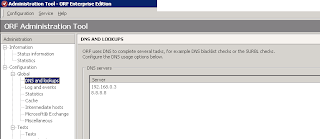
After installing ORF, the first change I make is to add an external DNS server. I add Google's public DNS, 8.8.8.8 as seen here:


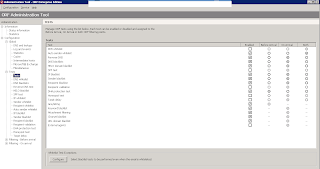
The next thing I do is enable the tests I like. Unfortunately, before I did the installation where I took these screen shots, I didn't track which tests I enabled. It's only three or four tests, but here is a screen shot with all the tests I enabled after I had enabled them:


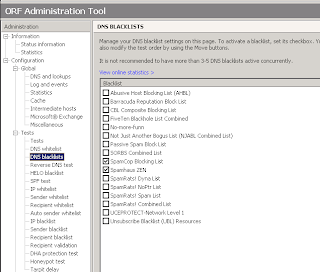
In the test for DNS blacklists, I enable SpamHaus Zen and SpamCop:


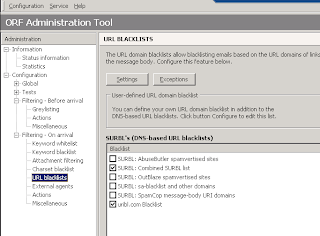
The last change I make is to add URL blacklists. I have it check the combined SURBL list and uribl.com blacklist.


After making those changes, click Configuration -> Save Configuration. Then go to Information -> Status Information and choose Start to start the ORF service.

Separately, I also disable any other spam filters. Almost always, I'm replacing the built in spam features in Exchange. I open Exchange Management Console and go to the various hub transport modules and disable any and all spam tests in the anti-spam tab.


Friday, July 1, 2011

mapping drives with group policy on Server 2008

If you want to map drives using group policy instead of scripts, here is the process. In this example, I have made four separate oragnization units (OUs) in ADUC (active directory users and computers) representing the four offices - NY, DC, Chicago, and SF.


Then you go into group policy management. Expand to forest: domain.local -> domains -> domain.local -> Group Policy Objects. Right click on Group Policy Objects and choose NEW. Give it a name like "map DC drives" and hit OK. Right click on the new group policy object you just created and choose EDIT. Expand User Configuration -> Preferences -> Windows Settings. Right click on Drive Maps and choose New -> Mapped Drive.


Create the drive and location as specified like this.


Still in group policy management , right click on the OU you want to apply the group policy to and click "link to existing GPO." Choose the appropriate group policy.


Now, any users you have in that OU will have that group policy that maps network drives applied to them.


At the end, run "gpupdate /force" from an elevated command prompt.

Thursday, June 30, 2011

removing XP Antivirus 2012

I've found XP antivirus 2012 to be easier to remove than most other of the fakealert viruses.

With XP antivirus 2012, you can use control-alt-delete to end task. Then run an rkill. Then run quick malwarebytes scan and remove everything, but don't reboot. Then run a full malwarebytes scan. You may find that the virus restarts even after an rkill after 3 or 4 minutes. Just close the program again and run an rkill and let the quick malwarebytes scan to keep the virus from restarting. Then run the full scan to completely get rid of the virus.