Monday, March 14, 2011

auto login on Windows 7

For a residential user, I was looking for an autologin for Windows 7. For XP, I used Tweakui, a part of the Windows XP Powertoys. But for Windows 7, I found these instructions:

  • Press the Windows key + R on your keyboard to launch the “Run” dialog box.
  • Type in control userpasswords2
  • Press Enter. The User Accounts window will display.
  • Uncheck the option “Users must enter a user name and password to use this computer”
  • Click “OK”
  • You will then be prompted to enter the current password and confirm it.
  • After doing so, you will no longer be prompted to enter your password upon login.

I found those instructions here:

Sunday, February 27, 2011

turning off autorenew of SSL certs on godaddy

Godaddy turns on autorenew for all its certificates. I found this set of instructions on how to disable autorenewal:

  1. Login to GoDaddy
  2. Click My Account on the top listing
  3. Click “Renewals” on the left side of the page
  4. In the menu that pops up, click “Payments & Renewing Items”
  5. This brings up the page “Payment Profile” where all auto-renew items are listed
  6. Click the “Auto” column header and look for any items turned “On”
  7. Check the box next to any “On” items and click “Auto Renew ” at the top
  8. On the right side of page, check “Disable Auto Renew” then “Save Changes”.

I'm re-posting this info from here:

Thursday, February 3, 2011

setting up Outlook to sync with a Google Apps account

If you have a Google Apps Premier or Education account, Google provides a plug-in to keep Outlook synced with your Google Apps account. It keeps your calendar, contacts, and email sycned with the Google servers. That way - any content you have in Outlook will also be available in webmail and vice versa (and any other computers you sync to Google will also have that data).

Here's how you set up the Google Apps plug-in:

step 1:
Run the Google Apps plug-in from here:
(click on Download Google Apps Sync)

step 2:
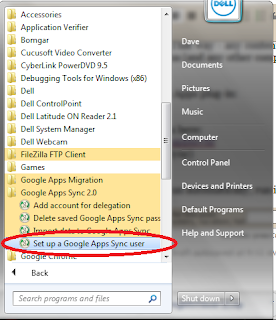
If the Google Apps Sync doesn't run automatically, run it manually like this:

Step 3:
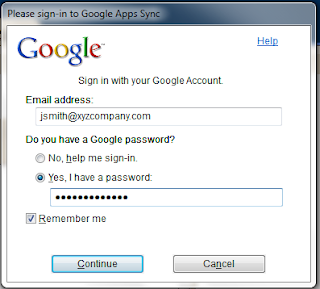
Enter your full email address and password like this.

Step 4:
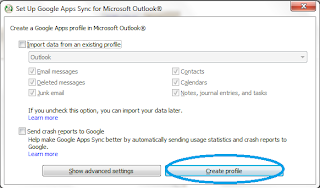
Click "create profile" (ignore the other options unless specifically told to use them)

Step 5:
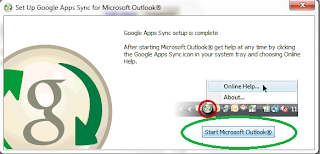
Click on Start Microsoft Outlook

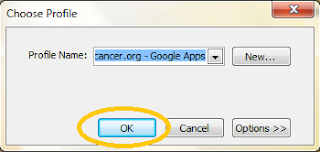
Step 6:
Click on OK to choose your Google Apps profile in Outlook (it'll always default to your Google Apps profile):

Wednesday, January 19, 2011

Setting permissions for home folders on Windows Server

There are certain permissions you need to set for the parent folder of user home folders. The essential part is setting authenticated users to "this folder only" on the parent folder - but here is a page that talks about setting those permissions:

Thursday, January 13, 2011

analyzing BSOD mini-dumps

This Dell page talks about troubleshooting of BSODs and gives a link near the end to the Windows Debugger and a tutorial on the Windows Debugger to analyze mini-dumps to determine the cause of blue screens of death.

http://support.dell.com/support/topics/global.aspx/support/kcs/document?c=us&l=en&s=bsdr&docid=DSN_356576&isLegacy=true

Tuesday, January 11, 2011

connecting Outlook 2003 to an Exchange 2010 server

Using its default settings, Outlook 2003 won't connect to an Exchange 2010 server (nor will Outlook 2007 that has been upgraded from Outlook 2003). Exchange 2010 requires encryption between clients and itself when doing MAPI connections. As such, you need to make that change from the default settings on Outlook 2003. Just check the box for "encrypt data between Microsoft Office Outlook and Microsoft Exchange Server" on the security tab after clicking on the more settings button when setting up an Exchange account.

Monday, January 10, 2011

installing Office 2007 on a terminal server

I found this page on how to install Office 2007 on a terminal server. I've used it twice successfully to install Office 2007 Pro Plus (must be open license) on Windows 2008 (you should already have installed the terminal server role before installing Office 2007):


Here are my recommended setting changes:


Under Modify User Settings:

Microsoft Office Outlook 2007 -> Tools Options -> Other -> AutoArchive Settings -> Enabled (and then uncheck turn on autoarchive)


Microsoft Office Outlook 2007 -> Tools Account Settings -> RSS Feeds -> Turn Off RSS Feature -> Enabled


Microsoft Office Outlook 2007 -> Tools Options -> Preferences -> Search Options -> Prevent installation prompts when Windows Desktop Search Component is not present -> Enabled

Microsoft Office 2007 -> Privacy -> Trust Center -> Disable opt-in wizard on first run -> Enabled

Microsoft Office 2007 -> Privacy -> Trust Center -> Enable Customer Experience Improvement Program -> Disabled


Under Set Feature Installation States:

Set all items to Run All from My Computer


Under Outlook:

Outlook profile -> Modify Profile -> Define changes to make to the existing profile. If a default profile does not exist . . .

Specify Exchange server settings -> Make changes here as appropriate for your network (using %username% as the user name (but I do not configure cached Exchange if the terminal server will be on same LAN as the Exchange server)


That's it as far as customizations made to the OCT file. I add the installation key to the config.xml file (as specified here).


I save the OCT as c:\oct.msp

Of note - I have had trouble with the setup not finding the MSP file when it's not in the root, so I just put it in the root.


Then I run (in terminal server installation mode by running "change user /install" in an administrative command prompt):


z:\office2007\setup /adminfile c:\oct.msp

(alter path as needed)