Showing posts with label google apps. Show all posts

Thursday, April 25, 2013

importing autocomplete in Outlook 2010 from 2003 with complicating Google factor

I had a weird situation where I was taking an autocomplete database from Outlook 2003 to Outlook 2010 where the account was on Google Apps.

When you set up a Google Apps account, it pulls down an autocomplete database from the Google Apps account (presumably the autocomplete that exists from when you use webmail).  But if you were primarily using Outlook (2003 in this case), there is a much larger autocomplete database that you need to add.

You're supposed to be able follow the methods listed here, but they weren't working for me using the NK2 file I had and trying to bring them into Outlook 2010:
http://support.microsoft.com/kb/980542

What I ended up doing was creating a POP account that allowed me to to import the NK2 file (in my case, I put the NK2 file in the appropriate location \appdata\roaming\microsoft\outlook and created an Outlook profile with a POP account with the same name and it imported automatically).  With that, I had NK2 file in the autocomplete stream file.

I tried several times to rename the existing autocomplete stream file with the stream file with no success.  The file would revert back to an 1 KB file with no autocomplete data.  I can't explain, but I just kept trying and eventually, one time of renaming the stream file with the data I wanted with the name that was associated with Outlook worked.  I can't explain what I did differently, but I just kept trying (with the ocassional reboot) and it worked.


Friday, November 9, 2012

EMail hosting options for the small business for late 2012

Email hosting options have changed drastically in the last couple of years.  This post will cover the three main options I see for a company of 20 employees.  I'll lay out the costs as well so that companies with larger or small numbers of employees can make their own analyses.

I see three main options for corporate email hosting:
1) internal Exchange hosting
2) Hosted Exchange
3) Google Apps

Each has their own pros, cons, and costs which I will go over here.

Internal Exchange hosting:
For a long time, hosting Exchange internally was the only cost effective way to get Exchange.  When it cost more than $30 per user per month to get 2 GB of mailbox storage when hosting externally, it seemed like a no-brainer to get in-house Exchange for $8k to $12k.  For some people, internal Exchange hosting is still preferred.

Pros:
  • you have complete control over your data (required for some law firms)
  • you can open your Outlook in your terminal server
  • Mailbox sync with the server when in the office is lightning fast
  • you have full ability to customize your server with no limitations
  • costs are generally one-time fees for hardware/software purchase and not ongoing and internal hosting is often cheaper over the long run (definitely the case for single server implementations as if often the case with small businesses)
Cons:
  • implementation costs nearly double to get redundancy (redundancy typically requires two servers)
  • anti-spam options are generally not as good for internal hosting options as they are for external hosting options
  • problems (whether they be internal like a hardware failure or software crash or external like an ISP outage or power problem) can lead to long periods of time without email particularly if IT support is outsourced

Costs:
If we're talking about a company of 20 users, I'd say you could get a server for $8k that would suffice and handle up to 75 users.  Then I'd personally get Windows SBS 2011 for $750 (includes 5 licenses) and approximately $60 per license for the next 15 licenses.  We'd also want to get anti-spam software.  My current favorite is Vamsoft ORF.  For an SBS server, the price is $375.  Let's also add 20 hours of IT support time to build the server and 2 hours per month to maintain the server at a cost of $125 per hour (a total of 44 hours).  In total, we're looking at $15,525 for the first year and approx $3000 per year thereafter (24 hours of IT support at $125 per hour).  I might also include $240 per year in costs for online backup at ibackup.com in recurring costs and two 2 TB USB hard drives for on-site backup at a cost of $250 in one time costs.  So in total, I'd say we're looking at $15,775 for the first year.  Recurring annual cost beyond the first year is $3240.


Hosted Exchange:
In 2007 or so, the hosted email world was dramatically changed by the release of Google Apps.  Google began offering 25 GB mailboxes for $5 per mailbox per month.  Because they offered  comparable Exchange functionality at a *much* lower price point, Google destroyed the pricing structure that all outsourced Exchange hosts were using at the time.  It took years, but Microsoft itself finally caught up in mid-2011 with their hosted Exchange product, Office365.  In my mind, there is only one Office365 plan that small businesses should look at, the Hosted Email (Exchange Online) plan for $4 per user per month (plus tax) for a 25 GB mailbox.  This option provides all the important features of hosted Exchange that the more expensive plans offer.

Pros:
  • servers where email are hosted are maintained by world class tech support in state of the art data centers
  • email servers are redundant
  • upgrades are automatic with no additional costs
  • there is no hardware to buy or maintain
  • spam filtering is state of the art
  • virtually unlimited storage
Cons:
  • More advanced configuration changes need to be made via Exchange Shell, not a GUI
  • using Outlook in a terminal server will be too slow to be usable, will require webmail in a terminal server
  • Support response time for mail server issues is not anywhere near as fast as a qualified local sysadmin/consultant
Costs:
An organization of 20 users would require 20 mailboxes at $4 per mailbox per month.  At $80 per month, annual cost would be $960 per year.  The transition to the hosted Exchange would probably take an hour per user.  Let's average 45 minutes of support for Exchange per month for a total of 9 hours per year at $125 per year.  First year cost - $4585 ($960 for hosting and 29 hours of labor at $125 per hour).  Recurring annual cost beyond the first year is $2085.


Google Apps:
Google Apps email service is a very good service.  I consider it the only real alternative to Exchange that exists in the corporate email world.  There are isolated cases where I might put in a POP solution, but I recommend against it and do my very best to only ever implement Exchange or Google Apps.  Google recommends using Google from within Google Chrome - and actually using the web browser to manipulate your calendar, contacts, and email.  The experience in Chrome is good, but in the corporate world, most employees are used to (and prefer) Outlook.  Luckily, Google makes a plugin that allows you to have full functionality (email, calendar, and contact synchronization) in Outlook for the PC.

Pros:
  • familiar Google interface for those who like that interface when working within the browser
  • works very well when staff user Outlook for the PC
  • servers where email are hosted are maintained by world class tech support in state of the art data centers
  • email servers are redundant
  • upgrades are automatic with no additional cost
  • there is no hardware to buy or maintain
  • spam filtering is state of the art
  • virtually unlimited storage
Cons:
  • requires using the browser when working on a Mac (IMAP is available for programs, but that doesn't allow calendar and contact synchronization)
  • unable to use Outlook inside a terminal server, will require using webmail
  • sharing calendars and contacts between users requires going into webmail (cannot be done in Outlook like it can be in Exchange)
  • Support response time for mail server issues is not anywhere near as fast as a qualified local sysadmin/consultant
Costs:
An organization of 20 users would require 20 mailboxes at $5 per mailbox per month.  At $100 per month, annual cost would be $1200 per year.  The transition to the hosted Exchange would probably take an hour per user.  Let's average 45 minutes of support for Google Apps per month for a total of 9 hours per year at $125 per year.  First year cost - $4825 ($1200 for hosting and 29 hours of labor at $125 per hour).  Recurring annual beyond the first year is  $2325.

Thursday, May 5, 2011

Google Address Book "Connection to Google is temporarily unavailable"

By default, you get an error about the google address book not being able to sync when you open a Google Apps profile in Outlook. It looks like this:


This is fixed by enabling contact sharing in the Google Apps control panel. I guess this is some kind of global address list from what I'm reading.

Here's how you fix it:
  • In the Google Apps control panel, click the Settings tab, then Contacts on the left side
  • Select Enable contact sharing.
  • Click Save changes.

And when fixed, it should work properly (though I've seen it not work - it makes little sense):

Thursday, February 3, 2011

setting up Outlook to sync with a Google Apps account

If you have a Google Apps Premier or Education account, Google provides a plug-in to keep Outlook synced with your Google Apps account. It keeps your calendar, contacts, and email sycned with the Google servers. That way - any content you have in Outlook will also be available in webmail and vice versa (and any other computers you sync to Google will also have that data).

Here's how you set up the Google Apps plug-in:

step 1:
Run the Google Apps plug-in from here:
(click on Download Google Apps Sync)

step 2:
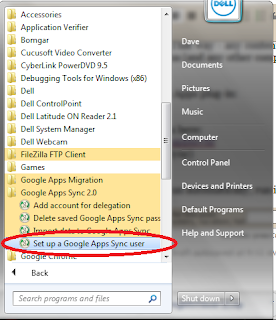
If the Google Apps Sync doesn't run automatically, run it manually like this:

Step 3:
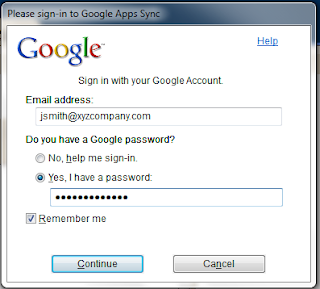
Enter your full email address and password like this.

Step 4:
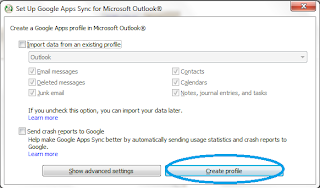
Click "create profile" (ignore the other options unless specifically told to use them)

Step 5:
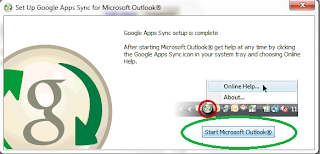
Click on Start Microsoft Outlook

Step 6:
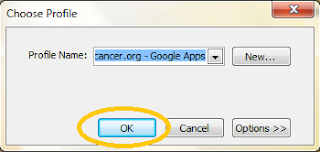
Click on OK to choose your Google Apps profile in Outlook (it'll always default to your Google Apps profile):

Thursday, December 16, 2010

Thunderbird won't open inbox subfolders after upload to google apps

I think Thunderbird is an excellent mail client -particularly for Macs - for users on Google Apps. When setting it up for a user, I found that I was getting an error that the folder didn't exist whenever a user would try to view the data in one of the inbox's subfolders. The error looks like this:


But then I found this solution:


In short, Thunderbird is looking for a subfiolder of INBOX - but gmail's folder's when imported from Exchange may often be Inbox. So you need to rename inbox portion of the label to be INBOX. So you'd need to change this:


to this:

Wednesday, December 8, 2010

setting up a Blackberry on Google Apps (with current Enterprise Activation)

This post will guide you on how to set up your Blackberry with your new Google Apps server.

Your phone was originally installed using a different kind of server - Blackberry Enterprise Server - and we have "wipe" your phone to remove those Blackberry Enterprise Server settings.

If you have anything other than email/contacts/calendar that you want to keep – please touch base with your system administrator to help back up your phone (this would typically be things like music or pictures). If the only content on your Blackberry is your company data then we can continue.

Step 1:

First, we wipe the Blackberry.

Click Options > Security Options > General Settings > Click the trackwheel/trackball on the Password field > Select “Wipe Handheld“ Type in blackberry when prompted.

A youtube video showing the wipe process is here:
http://www.youtube.com/watch?v=xRt9eXb0NW8&feature=related

Step 2:

Download the Google mail for Blackberry application.

To download the email app, in the web browser on the BB, go to www.gmail.com

Near the top of the screen, you should see an icon for “get faster gmail” - click on that

Download the gmail application and install it.

It’ll probably put the gmail application in the applications group on your BB. I’d recommend moving the gmail app to your main screen.

Open the gmail app and log in with your email address and your password.

It’ll download all your Google Apps email currently in your inbox.

Step 3:

Download Google Sync for the Blackberry.

In the web browser on your BB, go to http://m.google.com/sync

Download the app and install it. It’ll probably be located in applications after you install it. Sign in with your email address and password and tell it to sync your calendar and contacts.

That should be it.

Please contact your system administrator if you have any questions.

Tuesday, December 7, 2010

viewing other users' mailboxes in Google Apps (email delegation)

I often find that I want to enable users to see other user's mailboxes within their Outlook. If there's a common mailbox like careers@domain.com or you're viewing the mailbox temporarily of an employee who has left the organization.

On Google Apps, I have found the method for doing that described here:

Of note - as of December 2010, this is available in premier edition only and not available in the education edition.

Tuesday, November 9, 2010

contacting Google Apps tech support

Finding the support form for Google Apps isn't as easy as it should be. It's here (updated 8/4/14):

To use it, you need an education or premier account and need the customer pin and support pin that you get on the support tab of your dashboard.

Monday, November 8, 2010

google app migration thoughts from small Exchange domain

I did my second organization wide (only 8 users) migration from Exchange to Google Apps over the weekend, and I thought I'd just summarize what I saw what I think are best practices for a migration.

1) Check with necessary staff to make sure you have a complete list of all mailboxes, aliases, and distribution lists you need.

2) Create all accounts before any other processes.

3) investigate the size of mailboxes you are migrating. One of the mailboxes I was migrating was 11.5 GB (he intentionally didn't want it to archive). It took 70 hours to download and upload using my home FIOS. In my case, I would rather have gotten his Exchange data on the LAN instead of the 33 hours it took to download the data from the server. I'd say it's pretty important to plan bandwidth utilization as it's very easy to choke up the bandwidth with a large upload. Ideally, you're uploading one mailbox at a time over the fastest upstream internet connection you have available to you.

4) alter the MX records (ideally on a Friday night)

5) wait at least 12 hours for DNS records to change so all mailboxes on the Exchange server are static and are not longer receiving an email

6) begin uploading data from the fastest internet connection possible - or multiple connections - if you can - I've had one instance where I've had trouble with the Google Sync for Outlook - https://tools.google.com/dlpage/gappssync - though I still think it's the preferred tool. Another option for uploading mail, which doens't seem any quicker and still allows you to upload only one mailbox at a time is the Google Apps Migration for Microsoft Outlook tool here - http://tools.google.com/dlpage/outlookmigration. The problem I had with the migration for Outlook tool was that it wasn't naming the labels/folders correctly. If you had a label folder of Inbox/General - it showed up as PSTNAME/Inbox/General and not as a subfolder of inbox. Strange - though easily fixed. I guess the real difference between the two is whether an admin is doing it or if it's being done on the user's computer. On an admin's computer, he/she can use the Google migration tool to upload a PST file while he/she has his own Outlook open. For a user on his/her computer, you'd want Google Apps sync so Outlook would be usable while the data is uploading. Though from personal experience, you don't want people uploading data during the daytime. It can completely choke off your upstream bandwidth.

7) emulate functionality as best you can of Outlook using these options:

a) enable iphones to use ActiveSync -> as a Google admin -> Service Settings -> Mobile -> Turn on Google Sync
a) set up iphones using this link for instructions - http://www.google.com%2fsupport%2fmobile%2fbin%2fanswer.py%3fanswer%3d138740%26topic%3d14252
c) enable calendar sharing using these instructions - http://mail.google.com/support/a/bin/answer.py?hl=en&answer=170958
d) enable users to allow delegation of their accounts - as a Google admin -> Service Settings -> Email -> Let users delegate access to their mailbox to others in the domain. (of note - this seems to be available in the premier version but not the education edition as of 11/15/10)
e) tell users how to delegate their mailboes using these instructions - http://mail.google.com/support/bin/answer.py?answer=170957


8) make sure each computer is set up properly with Outlook configured for the google apps account (using Google Apps Sync at https://tools.google.com/dlpage/gappssync). Set it up as the default profile and also rename the NK2 file so that the autofill address book is retained.

a) be aware that the autofill address book will contain some old Exchange specific addresses that will fail when sending from google apps. As such, it's probably best practice to manually open a new message on the computer and delete each user on the Exchange/Google server since each entry was probably an X400 address and wouldn't work on the Google Apps server and will just cause confusion.


Sunday, May 2, 2010

scan to email with google mail or other off-site mail servers

I was in a pickle with a copier with a scan to email function and email hosted on google apps. No matter what I tried, I couldn't get the authentication to work. Then I found this page that talks about using hmailserver basically as a relay to gmail. I tried it, and it worked great.

Complete instructions on the hmailserver setup:
http://www.ceics.com/support/google-mail-smtp-relay-solution

EDIT - in a failed installation, I found three things that needed fixing that I didn't do quite right that you may want to pay attention to in the future:
1) if on a machine with a firewall, you'll need to open up port 25
2) the port for sending to gmail must be 465.  I tried 587 - which should work, but it didn't.  I tried this on 12/27/12.  I can't explain that - it was the only change I made so I know that the port number needed to be 465.
3) In Advanced -> IP ranges, you'll want the "firewalled subnets" or whatever you call the range that includes your copier - you'll want priority to be the highest number (meaning if the highest number is 20, you'll want your copier's priority to be 20 or 25 or higher).  I'm used to MX records, so I figured lower would be a higher priority, but that was not true.

Thursday, April 22, 2010

Google Apps upgrade impressions

Today, I took a 7 person company and moved them from a shared Linux/POP server to Google Apps. Once I got the process down, it was super easy.

Presuming that you want to keep Outlook in use or use the gmail webmail as your primary interface (which is what it sounds like Google wants you to do), you start the same way.

Start with the Google Apps Sync for Outlook:
https://tools.google.com/dlpage/gappssync

Just install that, log in, choose a new profile. and then import and choose the old Outlook profile where all the data is. It'll take a minute before it starts importing, but it'll do it.

This is really the best method. I tried to do an import from a PST file, but that failed several times. The google email updater is also an option, but that requires Outlook to be closed, so it's not convenient for a user to work on while the uploading process is happening.

I also had to set up three Blackberries. Setting up Google sync (which does wireless syncing of calendar and contacts only) was super easy. Just go to this site on the BB, log in, and that's it:
http://m.google.com/sync

But what was weird was the Google Mail app for Blackberries. You can get that here on the BB:
http://m.google.com/mail

On the Storm, I was able to get the Google icon to appear. On the 8800 and the 9630, I downloaded and installed the mail app, but there was no Google Mail icon. I installed again. Nothing. So instead, I set up those two BBs with IMAP accounts.

First, I had to enable IMAP. You can't do that on an individual's Google settings. It must be done from an admin's console.

Here's how you enable IMAP company-wide:

Click on Manage this domain
Click on Service settings
On that page, find the check box for "Disable POP and IMAP access for all users in the domain" and UNCHECK that box

Wait 30 minutes and you'll be able to use IMAP to check email for staff on google apps