Showing posts with label Outlook. Show all posts

Tuesday, October 3, 2017

Visual Basic script to delete calendar appointments with a specific subject

I had a user on Outlook for Mac 2016 who had thousands of duplicate appointments (created by an Outlook bug).  Here was my fix . . .

I set up the user's account in my Outlook.

I pressed alt-F11 and expanded Project1 and then expanded Microsoft Outlook object and then expanded this Outlook session.  I double clicked on this Outlook session and put in this text in the right hand pane where DESIRED SUBJECT is the subject of the messages you want to remove.

When done, I clicked on the play button in the toolbar (green triangle) to run the script.


Option Explicit

Sub deleteOutlookAppt()
Dim olApp As Object 'Outlook.Application
Dim olNS As Object 'Outlook.Namespace
Dim olAptItemFolder As Object 'Outlook.Folder
Dim olAptItem As Object 'Outlook.AppointmentItem
Dim i As Long

    Set olApp = CreateObject("Outlook.Application")
    Set olNS = olApp.Session
    Set olAptItemFolder = olNS.GetDefaultFolder(9) '9=olFolderCalendar constant
   
    For i = olAptItemFolder.Items.Count To 1 Step -1
        Set olAptItem = olAptItemFolder.Items(i)
        If olAptItem.Subject Like "DESIRED SUBJECT" Then
            olAptItem.Delete
        End If
    Next i
   
    Set olAptItem = Nothing
    Set olAptItemFolder = Nothing
    Set olApp = Nothing
   
End Sub


Friday, October 28, 2016

How to completely uninstall Google Apps Sync for Microsoft Outlook (GASMO)

This post will talk about how to completely uninstall Google Apps Sync for Microsoft Outlook (hereafter referred to as GASMO).

You might want completely uninstall GASMO for several reasons.  If you're experiencing instability in Outlook, creating a new GASMO profile is typically the first step by re-running "Set up a Google Apps Sync user" and then setting the new profile as the default.  Should the new profile prove to be unstable, sometimes you need to completely remove GASMO.

Here is how I do remove GASMO completely.

Close Outlook
Uninstall GASMO via add/remove programs.
Delete the folder C:\Program Files (x86)\Google\Google Apps Sync
Delete the folder C:\Users\%username%\AppData\Local\Google\Google Apps Sync

Wednesday, September 28, 2016

SSL certificate errors on Outlook for Mac caused by Outlook bug

Outlook 2016 for Mac has a bug in it that causes Outlook to show a security error when connecting to an Exchange server even when the Exchange server and all parts are properly configured.  This post will talk about what the error looks like and how to make the error disappear.

When opening or configuring Outlook for Mac that connects to an Exchange account, users will get an error like this:


You can hit "continue" to get through the error, but to remove the error forever more . . .

Hit "Show Certificate"
Check the box for "Always trust"
Hit Continue
Enter your password at the prompt that comes up.


Friday, August 12, 2016

Moving autocomplete files between profiles on Outlook 2010/2013/2016

This is the process I use for moving autocomplete data from one profile to another profile when you don't have an Exchange server.  This is applicable for Outlook 2010/2013/2016.

First, send an email from the new mail profile and note the time/date when you sent the email.  This time/date will be important shortly.

Now, go to:
c:\users\%username%\appdata\local\microsoft\outlook\roamcache

You're looking for two autocomplete files.  Both files start with stream_autocomplete . . .

You're looking for one stream_autocomplete file with the time/date when you sent the email just now.
You're also looking for the stream_autocomplete that is much larger and represents the autocomplete for the old profile (this will be a file between 10 KB and 5000 KB) with a time/date that corresponds to the last time you sent an email from the old profile.

We'll call the new file "new_autocomplete" and the old file "old_autocomplete" going forward.

Open Outlook.  Put Outlook offline.

in c:\users\%username%\appdata\local\microsoft\outlook\roamcache . . .

Copy and paste old_autocomplete so you have old_autocomplete and old_autocomplete_copy.

Highlight new_autocomplete and choose rename.  Hit control C so you have the name of new_autocomplete in your clipboard.  Add a single letter to the end of new_autocomplete so new_autocomplete now has a new name.

Highlight old_autocomplete_copy and choose rename.  Paste the name you have on your clipboard.  Now, your copy of old_autocomplete will have new_autocomplete's name.

Close Outlook.
Wait 30 seconds
Reopen Outlook.
Put Outlook onlne.

Test autocomplete.

That's it.

Friday, June 17, 2016

Configuring Outlook with a Google account (Google settings change needed after July 2014)

You need to an adjustment to your Google settings to get Google email working in Outlook.  I got this message when trying to set up a Google account in June 2016:

Your IMAP server wants to alert you to the following: Please log in via your web browser:
http://support.google.com/mail/accounts/bing/answer.py?answer=78754 (Failure)


The link above doesn't help as far as I can tell.

I got the answer from Microsoft's site:
https://support.microsoft.com/en-us/kb/2984937

On 7/15/14, Google disabled basic authentication, so you need to enable basic authentication to get Outlook (or Apple Mail or others) to successfully authenticate with Google accounts.

You can enable basic authentication here (assumes you are logged into your Google account):
https://www.google.com/settings/security/lesssecureapps


Tuesday, February 17, 2015

Outlook for iPhones

On 1/29/15, Microsoft released a new iphone and Android app for email.  This app is listed as Microsoft Outlook (and should be the first choice when you search for "Outlook" in the app store) The Outlook app isn't that different from the native iphone mail app , but overall, I've learned to like the new Outlook app better.  The main selling points for me - 1) focused inbox (where the most important messages are listed together separate from most other stuff you get) and 2) one swipe delete (where it took a swipe and a press to delete in the native mail app for iphone), 3) a consolidated inbox (my Exchange, Yahoo, and gmail inboxes are all together instead of three separate inboxes).

I've created instructions for installing the new Outlook app and the setup of an Exchange account here:

www.t-solve.com/clients/instructions/iphone-outlook-app


Friday, October 24, 2014

Recovering lost Word (or other MS Office) documents

I'm adding a third tool to my chest on recovering MS Word (or other Office documents).

You can access ASD files (autorecover files) here:
%userprofile%\AppData\Roaming\Microsoft\Word

Other places to look for missing files (per this post):
C:\Users\%username%\AppData\Local\Microsoft\Windows\Temporary Internet Files\Content.Outlook

Or via this method to recover unsaved Word docs:
http://t-solve.blogspot.com/2014/09/retrieving-document-from-office-2010.html


Monday, May 12, 2014

Additional mailboxes in Outlook still appearing even after removing them account settings

In my Exchange environments, it's pretty common for me to give one user access to another user's mailbox for any number of reasons.  Sometimes, the user has left the orgaization.  If Joe has left, I'll give Bob access to Joe's mailbox in Exchange Management Console (giving Bob full access to Joe's mailbox) and then Bob will follow these steps to add Joe's mailbox:
http://www.t-solve.com/clients/instructions/view-other-account-in-outlook2010/

Sometimes, I use this feature for common mailboxes like a careers@domain.com mailbox or and info@domain.com mailbox.

Recently (the last year or so as of 5/12/14), I have found that even when you remove the mailbox using from account settings (from the same method you use to add the mailbox in Outlook), the mailbox does not disappear.  An Exchange attribute needs to be changes to remove the user's mailbox.

Let's take the example of Bob opening Joe's mailbox.

Open ADSI Edit.
Drill down until you find the entry representing Joe's account.
Right click on Joe and choose Properties.
Scroll down to MSExchDelegateListLink and double click on that field
Remove Bob's account from the list.

After the steps above are done, Joe's mailbox will disappear from Bob's Outlook.

Screen shot of what you're looking for:


Thursday, October 17, 2013

Importing a Mac Address book into Excel/Outlook

If you have a Mac address book that you want to import into Outlook on the PC (or just into Excel), you need an additional tool to do it.  As of OS X 10.8 Mountain Lion, the only options for exporting the Mac address book are vcard or Mac Address book archive, neither of which is compatible with Outlook or Excel.

There are some paid options in the Apple Store that export the address book to a TXT or CSV file, but I found a nice, easy, free option.

Export the address book VCARDs (make sure you select all and get all of your contacts in a single CSV file).  Then go here:
http://labs.brotherli.ch/vcfconvert/index.php

This site takes your VCF file and will convert it to 'gmail CSV' which you can use for direct import into Outlook or import into Excel for massaging before importing into Outlook.

Thursday, April 25, 2013

importing autocomplete in Outlook 2010 from 2003 with complicating Google factor

I had a weird situation where I was taking an autocomplete database from Outlook 2003 to Outlook 2010 where the account was on Google Apps.

When you set up a Google Apps account, it pulls down an autocomplete database from the Google Apps account (presumably the autocomplete that exists from when you use webmail).  But if you were primarily using Outlook (2003 in this case), there is a much larger autocomplete database that you need to add.

You're supposed to be able follow the methods listed here, but they weren't working for me using the NK2 file I had and trying to bring them into Outlook 2010:
http://support.microsoft.com/kb/980542

What I ended up doing was creating a POP account that allowed me to to import the NK2 file (in my case, I put the NK2 file in the appropriate location \appdata\roaming\microsoft\outlook and created an Outlook profile with a POP account with the same name and it imported automatically).  With that, I had NK2 file in the autocomplete stream file.

I tried several times to rename the existing autocomplete stream file with the stream file with no success.  The file would revert back to an 1 KB file with no autocomplete data.  I can't explain, but I just kept trying and eventually, one time of renaming the stream file with the data I wanted with the name that was associated with Outlook worked.  I can't explain what I did differently, but I just kept trying (with the ocassional reboot) and it worked.


Tuesday, April 2, 2013

removing "copy" from calendar appointments after importing calendar

Sometimes when importing a calendar into another Outlook calendar, most or all of the appointments will say "copy" before the appointment title.  A VB script that gives a fix is here:
http://answers.microsoft.com/en-us/office/forum/officeversion_other-outlook/importing-pst-outlook-calendars-subject-title-adds/c58ccd50-451d-4519-a1c9-f0d2491abba8

Recreated here for reference:

  1. Press Alt+F11 which will open the VBA window. 
  2. In the left pane, navigate to Project1-MS Outlook Object and double-click 'ThisOutlookSession'.
  3. Paste the code into the window in the right pane (code below)
  4. Press the green arrow button to execute the code.

Code to enter in step 3 (above):

Sub FixCopy()
Dim calendar As MAPIFolder
Dim calItem As Object
    
Set calendar = Application.GetNamespace("MAPI").GetDefaultFolder(olFolderCalendar)
        
Dim iItemsUpdated As Integer
Dim strTemp As String

iItemsUpdated = 0
For Each calItem In calendar.Items
    If Mid(calItem.Subject, 1, 6) = "Copy: " Then
      strTemp = Mid(calItem.Subject, 7, Len(calItem.Subject) - 6)
      calItem.Subject = strTemp
      iItemsUpdated = iItemsUpdated + 1
    End If
    calItem.Save
Next calItem

MsgBox iItemsUpdated & " of " & calendar.Items.count & " Items Updated"

End Sub


Wednesday, November 21, 2012

autocomplete on Outlook 2011 connected to SBS 2008 not working

I had a user with Outlook 2011 for Mac (running on OS X 10.8) connected to his Exchange account.  The server runs SBS 2008, fully patched (running Exchange 2007 SP 3).

The Outlook account was set up using autodiscover when the user was on the same LAN as the Exchange server.  When the user was not on the same LAN as the Exchange server, autocomplete did not work.

I troubleshot this problem off-site where I was able to replicate the problem.

I'm not sure exactly what I did to fix the problem, but I'm going to document what I did and what I saw.

First, I investigated the user's settings.  Interestingly, the field for server under directory services was blank.  I wasn't sure if there was supposed to be something there.  I assumed yes.

I created a new identity in Outlook 2011 and created a new Exchange account in that new identity that pointed to my personal Office365 account.  I let autodiscover create the Outlook connection settings.  Interestingly, there was nothing there in the server field for directory services either.  The autocomplete was not working in this Outlook profile/account either.

I logged out as the user and logged in as another user (another local account on the Mac).  I opened Outlook and Office update told me there was an update to install (perhaps 10.2.5 - I'm not sure).  I let that update install.  I opened Outlook and set up an Exchange account for a complete separate client that also has an SBS 2008 server (fully patched).  I let autodiscover create the settings.  Autocomplete was not working on this account either, but I did notice that there was a value in the server field in directory services. The value was set to servername.domainname.local.  Clearly, this server would not resolve since the server was not local and there was no route to the server.  This make some logical sense to me that my client's autocomplete was working in the office when he was on the same LAN as the server so Outlook must have been able to route to the server in some way to pull autocomplete data.  So I replaced servername.domainname.local with the FQDN of the server - remote.contoso.com.  I checked the box for SSL.  Directory services said it would use port 3269 so I went to the firewall of my SBS 2008 server and redirected port 3269 to the local IP of my SBS 2008 box.  I closed Outlook and reopened it.  Outlook complained of a certificate mismatch (directory services was pointing to remote.contoso.com but the cert was for servername.domainname.local).  I allowed Outlook to use the server anyway despite the certificate mismatch.  And lo and behold, autocomplete began working.

In addition, Office 2011 also notified me of another update, 10.2.6 i believe - which I allowed to install.

But this is where it gets weird.

I go back into my the user's original profile and autocomplete is working.  I made no changes to his Exchange account.  None at all.  All I did was get aucomplete working on another Exchange account in a completely different Mac profile.  There is no reason that would have any effect on the user's profile.  Autocomplete also began working on my Office365 profile as well.

I rebooted the Mac and the changes persisted (autocomplete still working).  I disconnected from the WLAN the Mac was on and connected the Mac to my iphone's personal hotspot and the changes persisted (autcomplete still working).

I can't narrow this down to a specific thing I did to fix it, but it's working.

Thursday, May 5, 2011

Google Address Book "Connection to Google is temporarily unavailable"

By default, you get an error about the google address book not being able to sync when you open a Google Apps profile in Outlook. It looks like this:


This is fixed by enabling contact sharing in the Google Apps control panel. I guess this is some kind of global address list from what I'm reading.

Here's how you fix it:
  • In the Google Apps control panel, click the Settings tab, then Contacts on the left side
  • Select Enable contact sharing.
  • Click Save changes.

And when fixed, it should work properly (though I've seen it not work - it makes little sense):

Thursday, February 3, 2011

setting up Outlook to sync with a Google Apps account

If you have a Google Apps Premier or Education account, Google provides a plug-in to keep Outlook synced with your Google Apps account. It keeps your calendar, contacts, and email sycned with the Google servers. That way - any content you have in Outlook will also be available in webmail and vice versa (and any other computers you sync to Google will also have that data).

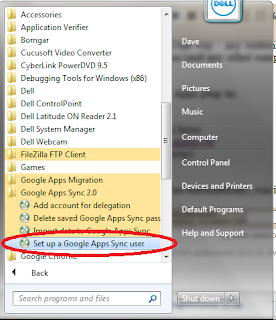
Here's how you set up the Google Apps plug-in:

step 1:
Run the Google Apps plug-in from here:
(click on Download Google Apps Sync)

step 2:
If the Google Apps Sync doesn't run automatically, run it manually like this:

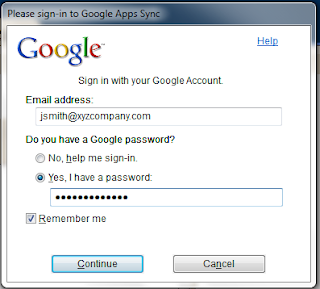
Step 3:
Enter your full email address and password like this.

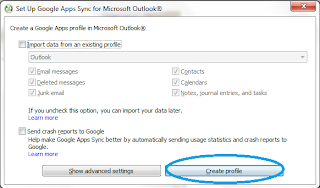
Step 4:
Click "create profile" (ignore the other options unless specifically told to use them)

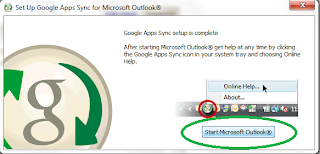
Step 5:
Click on Start Microsoft Outlook

Step 6:
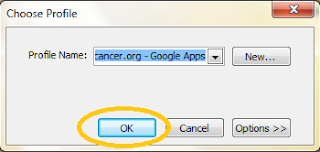
Click on OK to choose your Google Apps profile in Outlook (it'll always default to your Google Apps profile):

Tuesday, December 7, 2010

viewing other users' mailboxes in Google Apps (email delegation)

I often find that I want to enable users to see other user's mailboxes within their Outlook. If there's a common mailbox like careers@domain.com or you're viewing the mailbox temporarily of an employee who has left the organization.

On Google Apps, I have found the method for doing that described here:

Of note - as of December 2010, this is available in premier edition only and not available in the education edition.

Wednesday, September 8, 2010

finding Outlook attachments if you hit save on a file without moving it to a new location

Every now and then, a user will open an attachment in Outlook and hit save and close then close the file - and then not be able to find the file. That's because Outlook saved the file where it found the file - which is a hidden location that's not obvious to the user.

For intermediate users and above, try this:

If you're using Windows 7/8/10 or Vista, hold down the Windows key and press R (to open the Run prompt). Then in the location bar, put this:

C:\Users\%username%\AppData\Local\Microsoft\Windows\Temporary Internet Files\Content.Outlook

You'll find one or more folders in there, and one of them is typically the place where Outlook attachments are saved.


If you're using Windows XP, click on Start -> Run and put this into the RUN box and hit OK:

C:\Documents and Settings\%username%\Local Settings\Temporary Internet Files\Content.Outlook\

You'll find one or more folders in there, and one of them is typically the place where Outlook attachments are saved.


This web page talks about how to find the folder - which isn't something I'd recommend for anyone but the most advanced users (it involves going into the registry editor):

http://support.microsoft.com/kb/817878

The registry entry for the Outlook secure temp folder will guide you to the exact location where you can find Outlook attachments.

Saturday, August 28, 2010

script to move Exchange servers in Outlook profiles

I haven't tested this yet, but I found what looks to be a very useful script for adjusting Outlook profiles when you need to alter the Exchange server if the change wasn't made automatically during a typical Exchange mailbox move.

An example is when I did my SBS 2008 migration from SBS 2003. I found that my Outlook profiles did not update automatically. The script from this blog post would have been immensely helpful:

http://davedolan.com/blog/?p=83&cpage=1#comment-121612

Tuesday, June 29, 2010

certificate mismatch when opening Outlook clients on Exchange 2007/2010 servers

After moving from Exchange 2003 to Exchange 2010, I found all my Outlook 2007 users on the LAN were getting this error:


The certificate it was referencing was the FQDN for the external name of the server. But it was accessing Exchange through the internal name. The solution was KB94072

Easy fix once you know what to look for. You're telling Outlook to use the external name - which is resolvable through internal DNS.

Thursday, April 22, 2010

Google Apps upgrade impressions

Today, I took a 7 person company and moved them from a shared Linux/POP server to Google Apps. Once I got the process down, it was super easy.

Presuming that you want to keep Outlook in use or use the gmail webmail as your primary interface (which is what it sounds like Google wants you to do), you start the same way.

Start with the Google Apps Sync for Outlook:
https://tools.google.com/dlpage/gappssync

Just install that, log in, choose a new profile. and then import and choose the old Outlook profile where all the data is. It'll take a minute before it starts importing, but it'll do it.

This is really the best method. I tried to do an import from a PST file, but that failed several times. The google email updater is also an option, but that requires Outlook to be closed, so it's not convenient for a user to work on while the uploading process is happening.

I also had to set up three Blackberries. Setting up Google sync (which does wireless syncing of calendar and contacts only) was super easy. Just go to this site on the BB, log in, and that's it:
http://m.google.com/sync

But what was weird was the Google Mail app for Blackberries. You can get that here on the BB:
http://m.google.com/mail

On the Storm, I was able to get the Google icon to appear. On the 8800 and the 9630, I downloaded and installed the mail app, but there was no Google Mail icon. I installed again. Nothing. So instead, I set up those two BBs with IMAP accounts.

First, I had to enable IMAP. You can't do that on an individual's Google settings. It must be done from an admin's console.

Here's how you enable IMAP company-wide:

Click on Manage this domain
Click on Service settings
On that page, find the check box for "Disable POP and IMAP access for all users in the domain" and UNCHECK that box

Wait 30 minutes and you'll be able to use IMAP to check email for staff on google apps

Thursday, October 22, 2009

Outlook "Cannot create [file attachment]"

I ran into a case today where a user was not able to open an attachment. It kept giving the error "cannot create [filename]" when trying to open the Outlook attachment. In this case, the file was called voicemail.mp3 and was caused by the fact that 99 other voicemail.mp3 files had been received as attachments previously. It was as simple as deleting all the attachments in the temporary store and then trying to reopen the attachment.

Instructions here:
http://www.groovypost.com/howto/microsoft/outlook/fix-outlook-cant-create-file-attachment-error/

Of note - an easy way to find the Outlook temp folder is to do a regedit and search for:
OutlookSecureTempFolder