Showing posts with label Exchange 2003. Show all posts

Monday, July 14, 2014

Moving Legacy X.500 addresses to Office 365 from on-premise servers

I migrated from SBS 2003 to Office365, but I didn't use one of the standard method.  I recreated the users in the cloud and impored PSTs via Outlook.  This works fine except for the problem with internal routing where internal addresses use X.500 addresses and generate NDRs when sending to internal staff.

This is a helpful article on using the NDR text to create the X.500 address, though I found its instructions not quite right.

http://support.microsoft.com/kb/2807779

In my case, I found a slight adjustment needed to make it work.

Let's say you're getting an NDR that says:
IMCEAEX-_O=DOMAIN_OU=FIRST+20ADMINISTRATIVE+20GROUP_CN=RECIPIENTS_CN=JSMITH@namprd07.prod.outlook.com

For the user jsmith, create a new Exchange email address with a type of X500 (no period in the type - it is X500 not X.500), and enter the value with adjustments as suggested by MS in the article above:
Replace any underscore character (_) with a slash character (/).
Replace "+20" with a blank space.
Replace "+28" with an opening parenthesis character.
Replace "+29" with a closing parenthesis character.
Delete the "IMCEAEX-" string.
Delete the "@mgd.domain.com" string.
Add "X500:" at the beginning.

It looks like this.  It takes 5 to 10 minutes or so from when you add the email alias until it works, but it does work when you do it.


As an example, I turned this:

IMCEAEX-_o=ExchangeLabs_ou=Exchange+20Administrative+20Group+20+28FYDIBOHF23SPDLT+29_cn=Recipients_cn=e0c06d4eee7e4ec8b8a38d105ca7793c-joe@namprd08.prod.outlook.com

into this:

/o=ExchangeLabs/ou=Exchange Administrative Group (FYDIBOHF23SPDLT)/cn=Recipients/cn=e0c06d4eee7e4ec8b8a38d105ca7793c-joe


In the case above, I moved an Exchange mailbox from one account to another (via exporting the old mailbox to PST and importing into a new mailbox on a new account).

Friday, September 23, 2011

sending over port 587 with SSL on SBS 2003

When configuring external users to send over port 587 on Exchange/SBS 2003 - in the scenario that you have users that need to POP the server for whatever reason - here is what I think is the best way to do it:

In Exchange System Manager, go to Servers -> Server Name -> Protocols -> SMTP -> Default SMTP Virtual Server

Right click on the Default SMTP virtual server and choose properties.

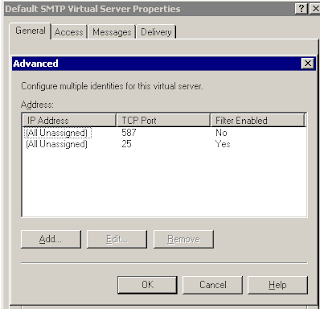
Click on advanced and click add. Enter 587 in the TCP port and hit OK. It'll look like this when done:

Click on the access tab. Click on Certificate.

Put your existing 3rd party SSL certificate in place on this virtual server. This must be a 3rd part SSL certificate (like godaddy).

And that's it.

When configuring the email client, tell it to use authentication and SSL over port 587. In Outlook 2007, use AUTO for the type of encryption.