Showing posts with label malwarebytes. Show all posts

Tuesday, August 16, 2016

Best practices for safe user behavior to keep your account/computer from being compromised

I wish the internet was a safe place, but it's not.  There are people who want to compromise your accounts, computers, bank accounts, and credit cards.  In this post, I'll talk about ways to help keep you and your computer safe.

I separate risks into two categories:
1) User risks - these are things that you do over the course of regular use of your computer
2) Server side risks - these are parts of the your IT system that you have no control over

This blog will focus on user risks, the things you can control and should be conscious of when using your computer.  While TV and movies often focus on hackers compromising your company's server, the vast majority of IT security compromises come from everyday internet and email use.

I will list the items that you should think about in order of importance.  All items are important, but the items listed first will be more important.

  1. Backup - every computer should have a backup system and preferably one that includes off-site storage.  This protects you from A) hardware and software failure and B) bad actors who would destroy your data or hold your data for ransom (this happens).  My strong preference is a cloud based backup system like Backblaze or Carbonite.  Of the two, my preference is Backblaze at $5 per computer per month.
  2. Antivirus - all computers should have an up to date modern antivirus program (Macs included).  Windows 8 and Windows 10 come with antivirus built-in.
  3. Malware protection - I believe best practice is to have a separate program for malware detection.  Antivirus, while good, does not protect against several types of Malware.  My favorite malware program is MalwareBytes at www.malwarebytes.org at a cost of $25 per year for residential users and $50 per computer per year for business users.
  4. Complex passwords - all passwords should be at least eight characters with at least one letter, one number, and one special character.
  5. Turn on multi factor authentication - As of 2016, many email providers offer a two factor or multi-factor authentication.  To minimize the chance of your email being compromised, you can turn on two factor or multi-factor authentication.  When turned on, your email system will send you a text message to your cell phone to verify you any time you access your email from a new computer.  Some people find this annoying, but it is a secure way to make sure your account does not get compromised.
  6. Safe email behavior - Users should never open an attachment or link in an email unless they are 100% sure they are confident that the attachment or link is safe.  Your IT person can often help you figure out if a link or attachment is safe if you are not sure.
  7. Avoid sending private information over standard email - Standard email traffic is not encrypted, and it is safe to assume that all the emails you send and receive can be viewed by other parties.  There are ways to send encrypted email, but encrypted email is not standard and needs to be set up by your email administrators.
  8. Safe web behavior - Even innocuous Google searches can return virus laden links.  Before clicking on any link in a web browser, be sure to verify that you are visiting the site you intend.  You might think you're going to a restaurant of movie review, but you might end up in another location.  Make sure when you look at search results that the address of the page you're visiting matches the name of what you are looking for.
  9. Avoid illegal software - Downloading software from questionable sites can create trouble.  Often this software is loaded with what we call "bloatware."
  10. Ignore virus warnings from web browsers - For many years, unethical people have created "fake alert viruses."  In your web browser (Firefox, Chrome, Internet Explorer, Edge, Safari, etc), a window opens up telling you that you have a virus and to click on the page to remove the virus or to call a phone number.  If the warning comes a page web page, this is a false message trying to get you to take action that will infect you.
  11. Ignore unsolicited phone calls - As of 2016, users sometimes get unsolicited phone calls from "Microsoft" or "Comcast" saying that your computer is infected and they want to help you.  This is a scam.  There is no such concept as a central authority somewhere keeping track of your phone number and computer status.  

If you have any questions, please contact your IT people.  They are the best resource for help staying safe.

Sunday, March 29, 2015

mnh.winnermore.info adware removal

In Chrome on a client computer, each time she'd open a window, you could see the browser looking to the site mnh.winnermore.info for content.  This included when she'd click to reply to a message within her Exchange webmail.  There was no program in add/remove programs.  There were no extensions in Chrome.  Malwarebytes, rkill, adwcleaner, and all other cleaners I use found nothing.
This problem persisted in even a new Chrome user profile (same Windows profile).  I even searched through the registry and found nothing.  Eventually, I came across this site:
http://greatis.com/blog/adware/remove-mnh-winnermore-net.htm

Per the page above, the fix was to set Chome to default settings.  This worked.  I don't know how/why, but somehow this site embeds itself somewhere I couldn't find it at all.

Monday, April 11, 2011

handling windows restore fakealert virus

Today, I dealt with another one of those fakealert viruses. This one was called windows restore. I had to take a couple minor extra steps. I booted to safe mode with networking. I found that the virus had removed the DNS servers (which had been statically set on this computer). I added those back and was then able to download malwarebytes. One thing that was super weird was that it had hidden all files and folders. I ran start -> run -> iexplore to start IE, but I also unhid all files.

After running malwarebytes and removing the virus, I found that all files were still hidden. I ran this from a DOS prompt to remedy that:

attrib *.* -s -h /s /d

And things were back to normal.

Of course I ran these instructions to clean the virus:

Monday, November 29, 2010

cleaning spyware/malware in safe mode using malwarebytes

To get the most surefire cleaning from malwarebytes to remove malware from an infected computer, I recommend running malwarebytes in safe mode. This tutorial will guide you trough booting into safe mode with networking and then running malwarebytes.

Step 1:
The first thing you need to do is shut down your computer. Do this normally using Start -> Shutdown. Instead of choosing restart, you should shut the computer all the way down.

Step 2:
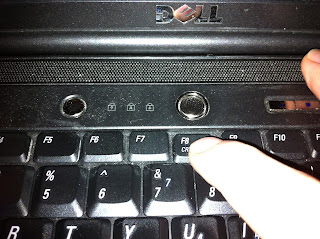
Turn the computer on and, wait approximately one second and then start pressing the F8 key about 2 times per second. There is a brief time window early during the booting process when we can reach the advanced startup menu. It's hard to see, so we just press F8 repaeatedly until we see it.

Step 3:

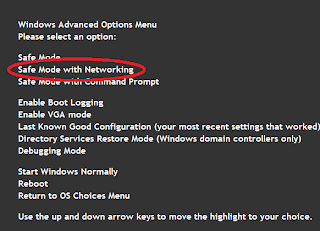
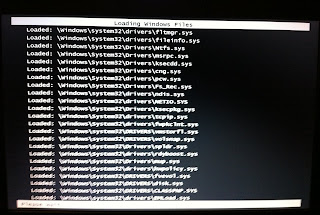
Choose Safe Mode with Networking in the advanced startup menu. Afterward, you'll get a bunch of diagnostic info on the screen about what is loading. This is normal. You can ignore it. (If you don't get the advanced start menu, your computer will boot normally. Shut down again and start on step 1).


Step 4:

Log in normally.

Step 5:

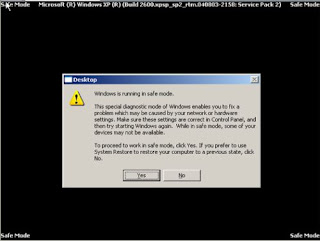
If you are asked if you want to continue in safe mode or run a system restore , hit YES - so that you continue to work in safe mode.


Step 6:

If you have already downloaded and installed Malwarebytes, run it now and skip to step 8. If not, go to step 7.


Step 7:

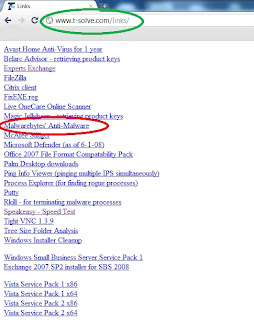
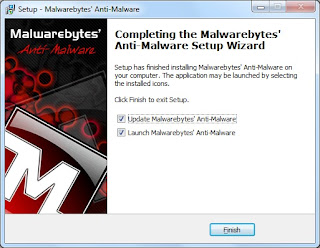
You can download and install Malwareware bytes from www.t-solve.com/links. Download and install Malwarebytes (you can accept all the defaults).


Step 8:

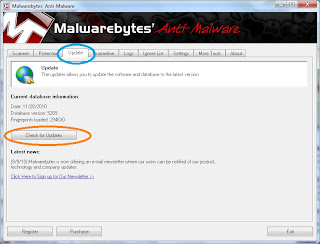
With the software open, run an update by going to the update tab and then pressing check for updates.


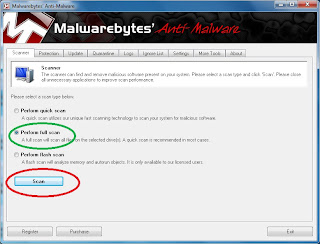
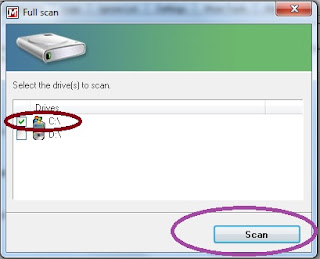
Go to the scanner tab. Choose a full scan and press scan. Then in the next box, choose the C drive and hit scan.


This scan will take anywhere from 30 minutes to 2 hours depending on the speed of your computer and the number of files that Malwarebytes needs to scan. With most computers that are a year old or newer, a scan will usually take 45 to 60 minutes.

Step 9:

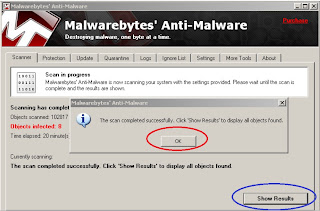
With the scan complete, you'll see that it found objects infected. At this point, click OK and then Show Results.


Step 10:

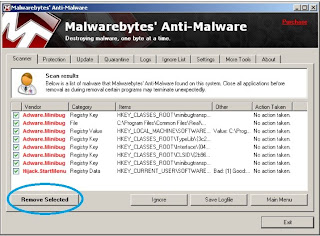
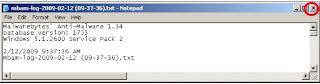
Click on "remove selected" on the next window that comes up. Then close text window that comes up next and click YES to restart your computer (sometimes you are not prompted to restart your computer - that's ok - you'll want to restart anyway to get out of safe mode).


After the reboot, log in normally, and you should be clean from all the malware that infected you before.


Tuesday, March 9, 2010

malware removal tools

The fakealert malware viruses are everywhere. I've managed to rid most of them with just two tools:

rkill - to terminate the running processes
Malwarebytes - to remove the infections

For just about every fakealert virus, I put rkill.com and mbam.exe (links above) on a flash drive and then run rkill.com on the infected computer. Then I run Malwarebytes full scan and then remove whatever it suggests.

---

The other day, I came across a machine with different symptoms - just in time debugging kept coming up over and over again. I fixed it with combofix, but here's also another suggested tool that I didn't have to use:

Combofix
Dr. Web CureIt

So far, I've fixed every infection I've found using some combination of these tools. I wonder when the antivirus vendors will ever get a hold on this. It's been over a year that these types of viruses have been in the wild.