Showing posts with label virus. Show all posts

Monday, November 29, 2010

cleaning spyware/malware in safe mode using malwarebytes

To get the most surefire cleaning from malwarebytes to remove malware from an infected computer, I recommend running malwarebytes in safe mode. This tutorial will guide you trough booting into safe mode with networking and then running malwarebytes.

Step 1:
The first thing you need to do is shut down your computer. Do this normally using Start -> Shutdown. Instead of choosing restart, you should shut the computer all the way down.

Step 2:
Turn the computer on and, wait approximately one second and then start pressing the F8 key about 2 times per second. There is a brief time window early during the booting process when we can reach the advanced startup menu. It's hard to see, so we just press F8 repaeatedly until we see it.
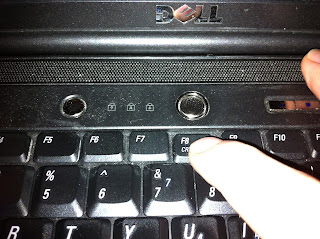
Step 3:

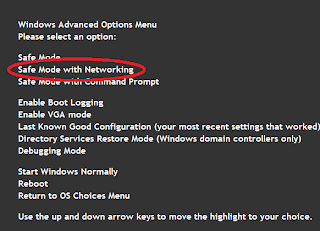
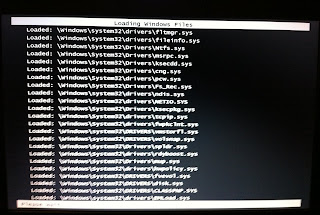
Choose Safe Mode with Networking in the advanced startup menu. Afterward, you'll get a bunch of diagnostic info on the screen about what is loading. This is normal. You can ignore it. (If you don't get the advanced start menu, your computer will boot normally. Shut down again and start on step 1).
Step 4:

Log in normally.

Step 5:

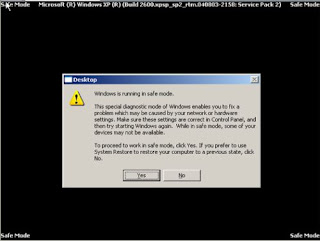
If you are asked if you want to continue in safe mode or run a system restore , hit YES - so that you continue to work in safe mode.


Step 6:

If you have already downloaded and installed Malwarebytes, run it now and skip to step 8. If not, go to step 7.


Step 7:

You can download and install Malwareware bytes from www.t-solve.com/links. Download and install Malwarebytes (you can accept all the defaults).
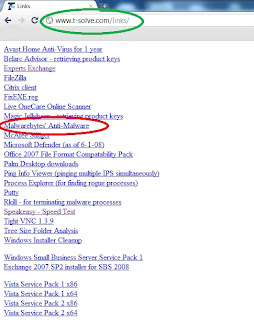
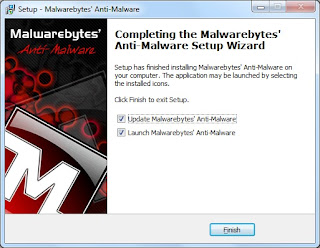
Step 8:

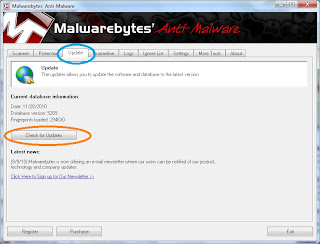
With the software open, run an update by going to the update tab and then pressing check for updates.

Go to the scanner tab. Choose a full scan and press scan. Then in the next box, choose the C drive and hit scan.
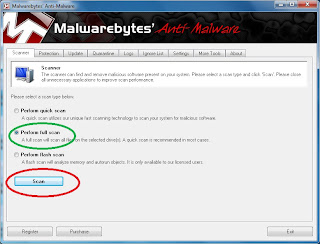
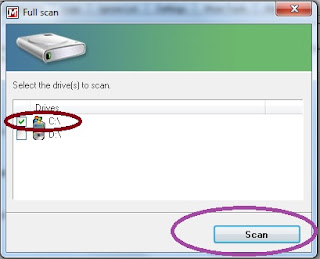
This scan will take anywhere from 30 minutes to 2 hours depending on the speed of your computer and the number of files that Malwarebytes needs to scan. With most computers that are a year old or newer, a scan will usually take 45 to 60 minutes.

Step 9:

With the scan complete, you'll see that it found objects infected. At this point, click OK and then Show Results.
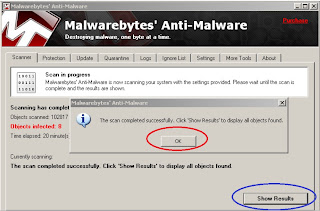


Step 10:

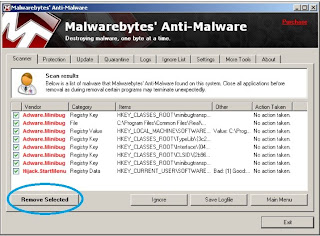
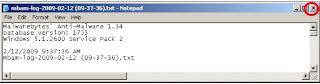
Click on "remove selected" on the next window that comes up. Then close text window that comes up next and click YES to restart your computer (sometimes you are not prompted to restart your computer - that's ok - you'll want to restart anyway to get out of safe mode).



After the reboot, log in normally, and you should be clean from all the malware that infected you before.


Wednesday, March 10, 2010

the anatomy of a fakealert infection

Over the last year, a new type of virus (malware) has become prevalant. The weird part is that antivirus vendors are way behind on detecting these new viruses. It seems new generations of these viruses change just enough to evade detection. This post will show you what it typically looks like when you are infected with one of these viruses - called fakealert viruses.

It starts by visiting an infected site. These don't necessarily need to be inappropriate sites. You can visit an infected site from a regular innocuous google search.

You start by getting a pop-up like this:


For some viruses, hitting OK might infect you - or it might be hitting any of the buttons in the pages that follow. What you're seeing here is a web site pop-up with words on it. It could just as easily be telling you the plot of last night's CSI: Miami. A web page can display anything as you will soon see. In this case, it just happens to be misleading text. The virus can't just infect you - it needs a little help from you in order to run a script.

If you hit ok, you often get something like the screen below. Again, it looks like something your computer is telling you - but it's just a web page. It could be a spoiler for Dancing with the Stars, but it's just an image and text that someone chose to put on there. Nothing is really scanning.


If you try to close the browser, it won't let you. No matter what you try, you get something like this:


And then it will often try to run/download a file to further infect you.


Another example of what you might see:


-----

So what is the answer? You've found your way to a web page that you can tell is trying to infect you - but it's hard/impossible to close your browser (the example here is Firefox - but Internet Explorer is vulnerable as well).

The answer is to close your browser with Windows Task Manager before you can be infected. Hit control-alt-delete and the start the Task Manager. Find your browser on the applications tab (either Internet Explorer or Firefox) and hit end task. This will close your browser without the annoyances and get rid of the potential infection before you are infected (presuming you didn't interact with virus/malware in the web page).


So that's pretty much it. That's what you should be looking for and the best way to avoid infection if you come across these types of viruses/malware. If you find yourself infected, you can use the tools listed here to disinfect your computer.

UPDATE - Symantec talks about fakealert viruses here:
http://www.symantec.com/norton/theme.jsp?themeid=mislead

Still no improvement on the handling of these types of malware. Very lame.

Thursday, February 11, 2010

winsock failed to initialize

When cleaning up a fakealert virus the other day on an XP machine, I had successfully cleaned it, but none of the network interfaces could get an IP address. My only real clue was a simple dialog box that said "winsock failed to initialize"

Luckily, I found this utility:

http://www.snapfiles.com/get/winsockxpfix.html

I ran it, and it fixed my problem very easily.

Tuesday, November 17, 2009

Microsoft finally offers free anti-virus

Microsoft's free anti-virus option is now out of beta and publicly available. You can get it here:

http://www.microsoft.com/Security_Essentials/default.aspx

I'm still evaluating it on Windows 7, but so far it seems ok. It is a free option for any geniune Windows that runs Win XP or later.

Tuesday, September 29, 2009

removing fake alert malware

Found some good resources for removing some of the fake alert malware out there.

http://www.bleepingcomputer.com/virus-removal/remove-windows-antivirus-pro

http://www.bleepingcomputer.com/virus-removal/remove-windows-police-pro

Who knows why Symantec, McAfee, and Avast are so far behind the ball on dealing with these fake alert things - but at least there's an automated option out there.

Even if there is a new piece of fake alert malware out there, I generally have good success trying a system restore first and then if not (usually because it deleted all the restore points) then you can usually go into safe mode and delete the registry keys, EXEs, DLLs, and stuff.

Monday, October 6, 2008

fix for WinXP2008 virus and xpsecuritycenter

I haven't tested this yet honestly - but an associate gave me this batch file saying that it would clean out the WinXP2008 virus if you run it in safe mode.  True?  Not sure yet.