Showing posts with label safe mode. Show all posts

Friday, May 6, 2011

using combofix in safe mode with command prompt

I was faced with a fakealert virus yesterday that existed in safe mode also, which made cleaning it very difficult. I used the command prompt method I used a couple weeks ago to clean it. Luckily, I was on a network - not sure I would have been able to do this on a stand alone computer. Here were my steps:

[on the virus affected machine]
boot into safe mode with networking
log in as a domain admin
create new local administrator (on the chance that I didn't know the local admin password)

[from another machine in the network that is not infected]
from another machine on the network logged in as a domain admin
go to \\10.0.0.54\c$ (affected computer drive)
create a new folder on the root of C called malware
download newest version of combofix and copy it to \\10.0.0.54\c$\malware

[on the virus affected machine]
reboot into safe mode with command prompt
log in as local administrator
run c:\malware\combofix.exe

You won't be able to install the recovery console, but in the two times I've tried this, it hasn't been a problem.

Monday, November 29, 2010

cleaning spyware/malware in safe mode using malwarebytes

To get the most surefire cleaning from malwarebytes to remove malware from an infected computer, I recommend running malwarebytes in safe mode. This tutorial will guide you trough booting into safe mode with networking and then running malwarebytes.

Step 1:
The first thing you need to do is shut down your computer. Do this normally using Start -> Shutdown. Instead of choosing restart, you should shut the computer all the way down.

Step 2:
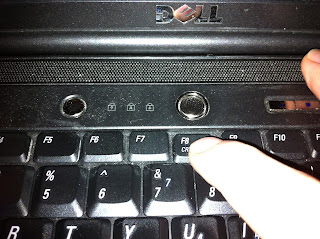
Turn the computer on and, wait approximately one second and then start pressing the F8 key about 2 times per second. There is a brief time window early during the booting process when we can reach the advanced startup menu. It's hard to see, so we just press F8 repaeatedly until we see it.

Step 3:

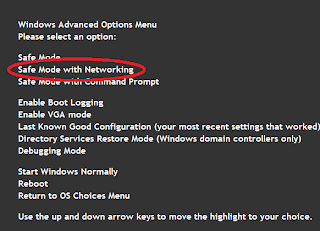
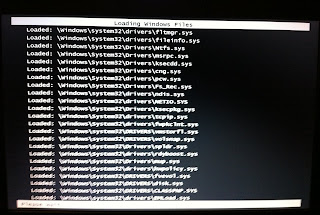
Choose Safe Mode with Networking in the advanced startup menu. Afterward, you'll get a bunch of diagnostic info on the screen about what is loading. This is normal. You can ignore it. (If you don't get the advanced start menu, your computer will boot normally. Shut down again and start on step 1).


Step 4:

Log in normally.

Step 5:

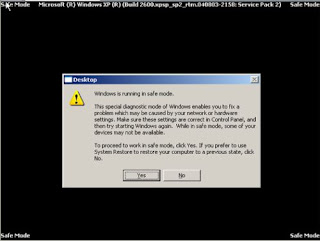
If you are asked if you want to continue in safe mode or run a system restore , hit YES - so that you continue to work in safe mode.


Step 6:

If you have already downloaded and installed Malwarebytes, run it now and skip to step 8. If not, go to step 7.


Step 7:

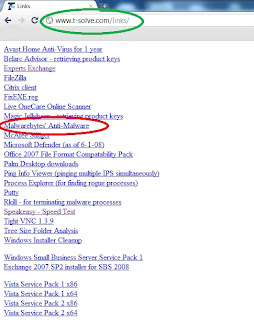
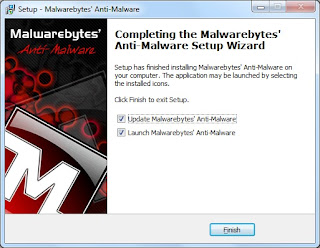
You can download and install Malwareware bytes from www.t-solve.com/links. Download and install Malwarebytes (you can accept all the defaults).


Step 8:

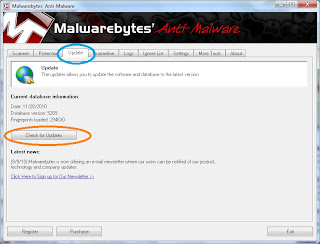
With the software open, run an update by going to the update tab and then pressing check for updates.


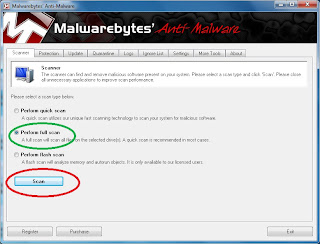
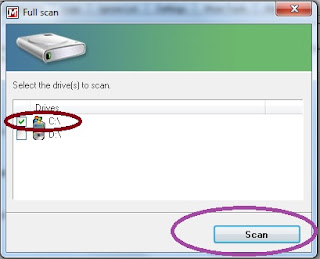
Go to the scanner tab. Choose a full scan and press scan. Then in the next box, choose the C drive and hit scan.


This scan will take anywhere from 30 minutes to 2 hours depending on the speed of your computer and the number of files that Malwarebytes needs to scan. With most computers that are a year old or newer, a scan will usually take 45 to 60 minutes.

Step 9:

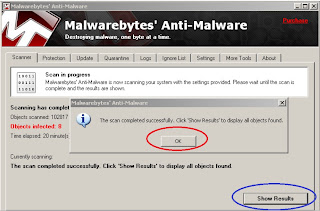
With the scan complete, you'll see that it found objects infected. At this point, click OK and then Show Results.


Step 10:

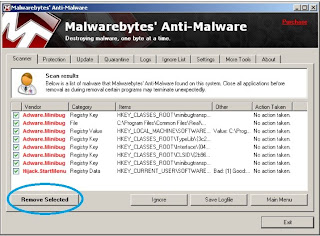
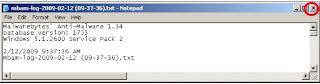
Click on "remove selected" on the next window that comes up. Then close text window that comes up next and click YES to restart your computer (sometimes you are not prompted to restart your computer - that's ok - you'll want to restart anyway to get out of safe mode).


After the reboot, log in normally, and you should be clean from all the malware that infected you before.

Tuesday, September 29, 2009

removing fake alert malware

Found some good resources for removing some of the fake alert malware out there.

http://www.bleepingcomputer.com/virus-removal/remove-windows-antivirus-pro

http://www.bleepingcomputer.com/virus-removal/remove-windows-police-pro

Who knows why Symantec, McAfee, and Avast are so far behind the ball on dealing with these fake alert things - but at least there's an automated option out there.

Even if there is a new piece of fake alert malware out there, I generally have good success trying a system restore first and then if not (usually because it deleted all the restore points) then you can usually go into safe mode and delete the registry keys, EXEs, DLLs, and stuff.

Saturday, May 16, 2009

SEP problems on SBS 2003

An associate recommended that I use Symantec Endpoint Protection on by SBS 2003 box as local file anti-virus.  I have done this successfully on a couple servers.  On one particular network, I have an Windows Server 2003 R2 box that hosts the Management Console, and I tried installing the SEP on the SBS box.  I first tried it using the unmanaged version of SEP on the SBS box.  The SBS box froze every time I rebooted it, and I had to cold boot it.  I figured it was that it was the unmanaged part that was the problem.  So today I tried to install it using the managed version.  Same problem.  And unfortunately, I didn't document how I uninstalled SEP.

The server freezes during a standard boot, so that doesn't work.  You can't uninstall it in safe mode (you can get to safe mode via F8 during the bootup process just like any regular Windows machine) becuase the installer service isn't running.

In essence, I went into safe mode, went into msconfig and went into the service tab and removed the Symantec options and rebooted.  Then you can go in regular mode and uninstall SEP.  I presume that will work - what I actually did was go into safe mode and go to msconfig and go into diagnostic startup and then enable all Microsoft services.  This sounds easy and logical, but took several hours of troubleshooting.