I had a Windows 2008 R2 server that would not reply to pings. This server was not the member of a domain (it was a standalone Hyper-V host). I fixed this by running this from an elevated command prompt:
netsh firewall set icmpsetting 8
I got this from this page:
http://social.technet.microsoft.com/Forums/windowsserver/en-US/082d0229-4137-4210-8b1a-580187c375aa/cannot-ping-windows-server-2008-r2-machine-from-inside-the-network?forum=winserverNIS
Thursday, May 29, 2014

Wednesday, May 28, 2014
display shared Exchange calendars on an iphone/Droid
I'm documenting a solution for display shared calendars (for example your boss's calendar) on an iphone/Droid. I tried this via two Office365 accounts (on two different domains), and it worked well.
Links to explain the process:
http://www.stevieg.org/2010/11/shared-exchange-calendars-on-ios-devices/
http://community.office365.com/en-us/f/158/t/13878.aspx
In essence, you share your boss's Exchange calendar as an iCal calendar (this does require a publishing process via right clicking on the calnendar and choose Share -> Publish this calendar). In my tests, a web link to an .ICS files was created. Send to the employee and the iphone (in my tests) will properly interpret the link as a shared calendar and add it as a calendar in calendars.
Links to explain the process:
http://www.stevieg.org/2010/11/shared-exchange-calendars-on-ios-devices/
http://community.office365.com/en-us/f/158/t/13878.aspx
In essence, you share your boss's Exchange calendar as an iCal calendar (this does require a publishing process via right clicking on the calnendar and choose Share -> Publish this calendar). In my tests, a web link to an .ICS files was created. Send to the employee and the iphone (in my tests) will properly interpret the link as a shared calendar and add it as a calendar in calendars.
Monday, May 12, 2014
Additional mailboxes in Outlook still appearing even after removing them account settings
In my Exchange environments, it's pretty common for me to give one user access to another user's mailbox for any number of reasons. Sometimes, the user has left the orgaization. If Joe has left, I'll give Bob access to Joe's mailbox in Exchange Management Console (giving Bob full access to Joe's mailbox) and then Bob will follow these steps to add Joe's mailbox:
http://www.t-solve.com/clients/instructions/view-other-account-in-outlook2010/
Sometimes, I use this feature for common mailboxes like a careers@domain.com mailbox or and info@domain.com mailbox.
Recently (the last year or so as of 5/12/14), I have found that even when you remove the mailbox using from account settings (from the same method you use to add the mailbox in Outlook), the mailbox does not disappear. An Exchange attribute needs to be changes to remove the user's mailbox.
Let's take the example of Bob opening Joe's mailbox.
Open ADSI Edit.
Drill down until you find the entry representing Joe's account.
Right click on Joe and choose Properties.
Scroll down to MSExchDelegateListLink and double click on that field
Remove Bob's account from the list.
After the steps above are done, Joe's mailbox will disappear from Bob's Outlook.
Screen shot of what you're looking for:

http://www.t-solve.com/clients/instructions/view-other-account-in-outlook2010/
Sometimes, I use this feature for common mailboxes like a careers@domain.com mailbox or and info@domain.com mailbox.
Recently (the last year or so as of 5/12/14), I have found that even when you remove the mailbox using from account settings (from the same method you use to add the mailbox in Outlook), the mailbox does not disappear. An Exchange attribute needs to be changes to remove the user's mailbox.
Let's take the example of Bob opening Joe's mailbox.
Open ADSI Edit.
Drill down until you find the entry representing Joe's account.
Right click on Joe and choose Properties.
Scroll down to MSExchDelegateListLink and double click on that field
Remove Bob's account from the list.
After the steps above are done, Joe's mailbox will disappear from Bob's Outlook.
Screen shot of what you're looking for:
Wednesday, April 16, 2014
fixing hibernation issues on Windows 7
I've got several Dell laptops (Latitude E6410, E6230, E6220) with trouble resuming from hibernation. What I'm seeing most often is the laptop will begin to resume and then sit at the Welcome screen and never go any farther. I'm going to make this my standard protocol for troubleshooting hibernation issues:
http://www.makeuseof.com/tag/when-power-saving-fails-fixing-windows-7-hibernation-issues/
The short version:
http://www.makeuseof.com/tag/when-power-saving-fails-fixing-windows-7-hibernation-issues/
The short version:
- update all hardware drivers
- disable and re-enable hibernation to delete and recreate the hiberfile.sys
(run powercfg.exe /hibernate off and powercfg.exe /hibernate on) - in device manager, turn off all devices that are capable of waking the computer (particularly NICs)
- turn off the auto-hide task bar
- in power options -> advanced settings for the active power profile, disable hybrid sleep
Monday, March 24, 2014
altering retention policy for deleted items in Office365
By default, Office365 mailboxes retain deleted items for 30 days. This is a bit short, I think. I typically like to make this limit 90 days to one year. Here are the powershell commands needed to run to make that happen (365 days in this example):
PS C:\scripts> enable-organizationcustomization
PS C:\scripts> Set-RetentionPolicyTag "Deleted Items" -AgeLimitForRetention 365
This is based on getting into PowerShell, based on my directions here:
http://t-solve.blogspot.com/2013/11/how-i-configure-script-to-get-into.html
PS C:\scripts> enable-organizationcustomization
PS C:\scripts> Set-RetentionPolicyTag "Deleted Items" -AgeLimitForRetention 365
This is based on getting into PowerShell, based on my directions here:
http://t-solve.blogspot.com/2013/11/how-i-configure-script-to-get-into.html
Sunday, March 23, 2014
setting up Blackberry services on Office365
These are the steps to enable Blackberry services on Office365 (running Exchange 2013).
From the admin console, go to service settings -> mobile
Click on Enable service
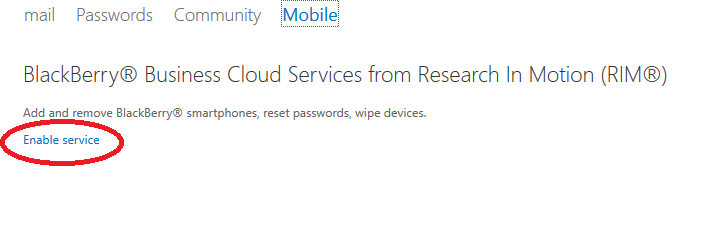
From there, you can manage the service. Of note, as of 3/23/14, I'd get an error when I tried to manage the Blackberry service from IE 11, but I was able to use Chrome. Pretty weird.

From the admin console, go to service settings -> mobile

Click on Enable service
From there, you can manage the service. Of note, as of 3/23/14, I'd get an error when I tried to manage the Blackberry service from IE 11, but I was able to use Chrome. Pretty weird.
Monday, March 3, 2014
Snapshots taking up tons of space on VM host machines
I found myself in a situation where I had a 1 TB drive on a VM host (running Windows 2008 R2) with four virtual machines on it that was completely out of space. I found that there were tons of AVHD files taking up a lot of room. Per what I read, these are snapshot files, even though I deleted the snap shots from the Hyper-V Manager (and cleared up a dozen GB or so), the snapshots were not truly gone.
This page talks a little bit about the process:
http://blogs.msdn.com/b/charles_sterling/archive/2008/08/06/what-are-all-these-avhd-files-hyper-v.aspx?Redirected=true
But in the end, I got the space back by just turning off the virtual machines. When I did so, there was a merge process that went on with the snapshots. In a turned off machine, this just happens automatically. In the end, I turned off the machines and left them off until the "cancel merge in progress" went away. For my largest VM (approx 400 GB of storage), this took about 4 hours.
This is what the cancel merge in progress looks like:

This page talks a little bit about the process:
http://blogs.msdn.com/b/charles_sterling/archive/2008/08/06/what-are-all-these-avhd-files-hyper-v.aspx?Redirected=true
But in the end, I got the space back by just turning off the virtual machines. When I did so, there was a merge process that went on with the snapshots. In a turned off machine, this just happens automatically. In the end, I turned off the machines and left them off until the "cancel merge in progress" went away. For my largest VM (approx 400 GB of storage), this took about 4 hours.
This is what the cancel merge in progress looks like:
Subscribe to:
Posts (Atom)