Wednesday, April 27, 2011

intermittent temporary freezes or pauses on Dell Latitude E4200

I've found some issues with intermittent temporary freezes/pauses on Dell Latitude E4200 laptops. But the hard part is that I've found no rhyme, reason, or consistency for the issue. It's certainly partly hardware related - but how? Here's what I know:

Windows will temporarily freeze every 5 to 10 minutes for 2 to 4 seconds. Keyboard and mouse will be unresponsive and the whole OS seems unresponsive during these short periods.

This problem ONLY happens when docked.

Twice, I have been able to narrow this problem down to hardware. In one case, a locally attached (via USB) Laserjet 2300DN and in another case a Logitech webcam. Once these objects were disconnected, the intermittent freezing stopped.

But I can't narrow it down to specific hardware all the time. For one user, he had nothing but the basics plugged in (USB keyboard, USB mouse, VGA monitor, ethernet). I got a different USB keyboard, USB mouse, and a different monitor (DVI this time). I also updated his BIOS and all other drivers. No effect. The intermittent freezing continued. I've seen this issue before and after the installation of Windows 7 SP 1 and with Symantec Endpoint Protection (separate rant on SEP forthcoming in a future blog post) and with MS Security Essentials.

I'm about to troubleshoot this again on another laptop. Interestingly, I've found this issue on 5 different Latitude E4200 laptops out of about 20 I have in place at various clients. So it's clearly not a universal issue. It's hard to troubleshoot because I have laptops with the exact same configuration not giving the same problem and the problem isn't easy to reproduce. If you have any experience with this issue, please feel free to leave a comment.

EDIT - I have resolved this on two laptops just by updating drivers. From the Dell web site, I updated the BIOS, video driver, mouse driver, and WLAN card driver. I'm not sure which one actually did it, but all the drivers should be up to date anyway.

Monday, April 11, 2011

handling windows restore fakealert virus

Today, I dealt with another one of those fakealert viruses. This one was called windows restore. I had to take a couple minor extra steps. I booted to safe mode with networking. I found that the virus had removed the DNS servers (which had been statically set on this computer). I added those back and was then able to download malwarebytes. One thing that was super weird was that it had hidden all files and folders. I ran start -> run -> iexplore to start IE, but I also unhid all files.

After running malwarebytes and removing the virus, I found that all files were still hidden. I ran this from a DOS prompt to remedy that:

attrib *.* -s -h /s /d

And things were back to normal.

Of course I ran these instructions to clean the virus:

Thursday, April 7, 2011

wireless autoswitch for disabling wireless on laptops when connected to the LAN

There's very little talk as far as I can about the problem of a wired laptop using its wireless connection even though it is actively wired. There is no scenario where you want your wireless to take precedence over your wired connection if both are available. But that is the default setting in Windows (wireless is preferred). And even if you make the wired connection the priority via this method:

If you're off the dock and not plugged in - and then sit back down at your dock, you'll still be wireless. I'm pretty sure it's also that way if you are wireless at home, put the laptop to sleep, and then come into the office and dock (wireless will take precedence). With Dell Latitude E Series laptops in ControlPoint, I found an option to disable the wireless when the wired connection is detected.

When working with a client's Toshiba Portege R600 who has very weak wireless within the office, I wanted to disable his wireless when wired but have it automatically re-enable when the wired connection is disconnected. I ended up using Wireless AutoSwitch XPV, which works exactly like I want it to. It's available here:

It costs $7.95 - which is a shame because it should be built into Windows.

Monday, March 14, 2011

auto login on Windows 7

For a residential user, I was looking for an autologin for Windows 7. For XP, I used Tweakui, a part of the Windows XP Powertoys. But for Windows 7, I found these instructions:

  • Press the Windows key + R on your keyboard to launch the “Run” dialog box.
  • Type in control userpasswords2
  • Press Enter. The User Accounts window will display.
  • Uncheck the option “Users must enter a user name and password to use this computer”
  • Click “OK”
  • You will then be prompted to enter the current password and confirm it.
  • After doing so, you will no longer be prompted to enter your password upon login.

I found those instructions here:

Sunday, February 27, 2011

turning off autorenew of SSL certs on godaddy

Godaddy turns on autorenew for all its certificates. I found this set of instructions on how to disable autorenewal:

  1. Login to GoDaddy
  2. Click My Account on the top listing
  3. Click “Renewals” on the left side of the page
  4. In the menu that pops up, click “Payments & Renewing Items”
  5. This brings up the page “Payment Profile” where all auto-renew items are listed
  6. Click the “Auto” column header and look for any items turned “On”
  7. Check the box next to any “On” items and click “Auto Renew ” at the top
  8. On the right side of page, check “Disable Auto Renew” then “Save Changes”.

I'm re-posting this info from here:

Thursday, February 3, 2011

setting up Outlook to sync with a Google Apps account

If you have a Google Apps Premier or Education account, Google provides a plug-in to keep Outlook synced with your Google Apps account. It keeps your calendar, contacts, and email sycned with the Google servers. That way - any content you have in Outlook will also be available in webmail and vice versa (and any other computers you sync to Google will also have that data).

Here's how you set up the Google Apps plug-in:

step 1:
Run the Google Apps plug-in from here:
(click on Download Google Apps Sync)

step 2:
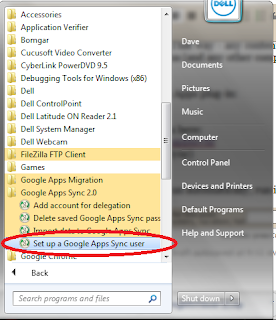
If the Google Apps Sync doesn't run automatically, run it manually like this:

Step 3:
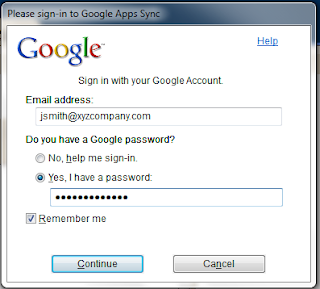
Enter your full email address and password like this.

Step 4:
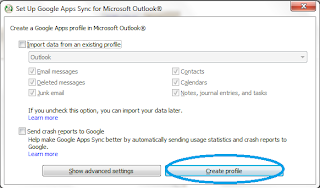
Click "create profile" (ignore the other options unless specifically told to use them)

Step 5:
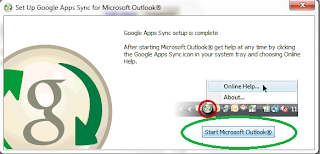
Click on Start Microsoft Outlook

Step 6:
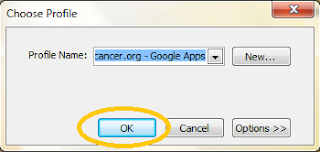
Click on OK to choose your Google Apps profile in Outlook (it'll always default to your Google Apps profile):

Wednesday, January 19, 2011

Setting permissions for home folders on Windows Server

There are certain permissions you need to set for the parent folder of user home folders. The essential part is setting authenticated users to "this folder only" on the parent folder - but here is a page that talks about setting those permissions: